Usage
Command Format by Installation Method
Examples use the PyPI command. For a downloaded script, run commands from the directory containing xbox_monitor.py and keep the same arguments:
| Installation | Command |
|---|---|
| PyPI or pipx | xbox_monitor [OPTIONS] |
| Manual script on macOS or Linux | python3 xbox_monitor.py [OPTIONS] |
| Manual script on Windows | python xbox_monitor.py [OPTIONS] |
For example, xbox_monitor --setup becomes python3 xbox_monitor.py --setup on macOS or Linux. Use python on Windows. Replace placeholders such as "<xbox_gamertag>" with an Xbox gamertag, quoted when it contains spaces.
Activate the tool's virtual environment before running these commands. For a downloaded script, run them from the directory containing xbox_monitor.py.
For first-time configuration, follow Setup & First Run. Use Doctor Preflight to check a setup before monitoring.
User Information Display Mode
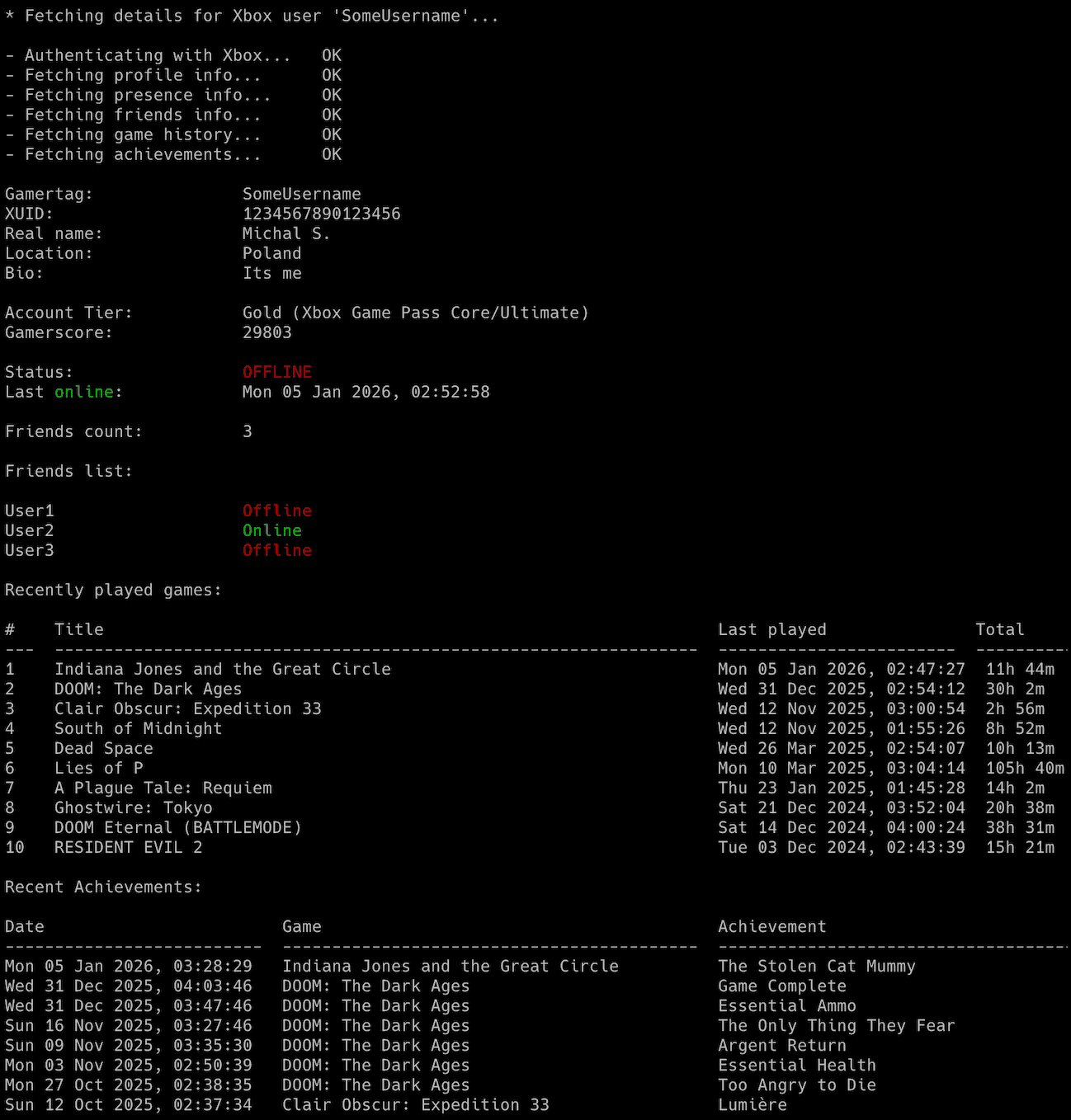
The tool can print a detailed view of an Xbox profile. This mode shows the information once and exits rather than monitoring.
Use -i or --info with the gamertag:
If MS_APP_CLIENT_ID and MS_APP_CLIENT_SECRET are not stored anywhere, pass them with -u and -w:
xbox_monitor <xbox_gamertag> -i -u "your_ms_application_client_id" -w "your_ms_application_secret_value"
This displays:
- Gamertag and XUID
- Real name, location and bio, when available
- Account tier, Game Pass Core, Ultimate or Free
- Gamerscore
- Online status, last online timestamp and the last played title while the user is offline
- Platform information
- Friends count
- Recently played games with last played date and total play time
To also list every friend and their current activity, add -f or --friends:
To also show the most recently earned achievements, add -r or --recent-achievements:
Limit how many items are shown with -m for games and -n for achievements:
Monitoring Mode
To monitor a user, pass their Xbox Live gamertag:
Set XBOX_GAMERTAG in the configuration file to monitor the same account without naming it every time. --setup offers to save it for you. A gamertag passed as an argument always wins over the saved one.
If the credentials are not stored anywhere, pass them with -u and -w:
xbox_monitor <xbox_gamertag> -u "your_ms_application_client_id" -w "your_ms_application_secret_value"
The first run performs the OAuth2 authorization once and saves the tokens.
The tool runs until interrupted with Ctrl+C. Use tmux or screen to keep it running.
You can monitor several players by running several copies.
Output is written to xbox_monitor_<xbox_gamertag>.log. Change it with XBOX_LOGFILE or switch it off with DISABLE_LOGGING, -d or --disable-logging.
Set ASCII_LOG_SEPARATORS to "Auto", the default, to use ASCII separator-only lines on Windows, "On" to use them everywhere or "Off" to keep Unicode separators in logs on every system. Terminal separators stay Unicode. Log files and all other logged text remain UTF-8.
Set TRUNCATE_CHARS or use the --truncate flag to cut each screen line to a maximum width, which stops long game titles from wrapping. Use 999 to auto-detect the terminal width. The log file always keeps the full line, so the setting is ignored when logging is disabled with -d. Install the optional wcwidth library for correct widths with wide characters. If it is missing, the tool says so at startup and counts every character as one column.
Names that come from Xbox Live, such as game titles and profile text, can contain terminal control sequences. They are removed before the text reaches the screen, the log file, the CSV file or an email, so a crafted name cannot clear your screen or overwrite a line that was already printed. Error messages are also checked for your secrets before they are shown or logged.
The timestamp and last status are saved after every change, so the last status survives a restart. Set XBOX_STATUS_FILE or use the --status-file flag to keep it somewhere other than xbox_<xbox_gamertag>_last_status.json in the current directory:
Interrupted writes leave the previous status file intact. If a saved timestamp is more than five minutes ahead of the machine clock, monitoring warns and starts timing that status again.
Terminal Output
Use --help for examples grouped by task and matched to your installation.
Monitoring mode prints the settings that are actually in effect before the first check.
Optional features appear once you switch them on.
Use --verbose or --debug for the full startup summary, including output paths, notification settings, secret sources and runtime information.
Use --truncate N or TRUNCATE_CHARS to limit screen line width. Set it to 999 to detect the terminal width automatically. Truncation does not change log files and is ignored when logging is disabled with -d.
The tool clears the terminal when monitoring starts. Set CLEAR_SCREEN to False to keep whatever is already on the screen.
The screen is never cleared when output is redirected to a file or a pipe, in debug mode or for a command that prints a result and exits, such as --doctor, --help and the test senders.
Two settings add detail to what a run prints. VERBOSE_MODE adds the decisions the run made and DEBUG_MODE adds timestamped technical traces. Both are off by default, both are independent of each other and both have a flag that wins over the file, --verbose and --debug. DELIVERY_CONFIRMATIONS is on by default and controls whether verbose mode confirms each delivered email and webhook alert. See Verbose and Debug Output.
Coloured Terminal Output
Xbox Monitor colours live terminal output and help by default. Saved log files stay plain text.
Turn colour off for one run with --no-color or permanently with COLORED_OUTPUT = False. Colour is also disabled for redirected output, NO_COLOR or an unsupported terminal. See Terminal Colours for details and Windows support.
Override individual colours with COLOR_THEME. It is merged over the built-in theme, so you only name the parts you want to change:
See Terminal Colours for every theme key and the accepted colour and style names.
Email Notifications
To be told when a user gets online or offline, set ACTIVE_INACTIVE_NOTIFICATION to True or use -a:
To be told when a user starts, stops or changes a game, set GAME_CHANGE_NOTIFICATION to True or use -g:
Xbox reports its own dashboard surfaces the same way it reports a game, so Home, the Xbox app and guide, the Microsoft Store, Game Pass, Edge and Settings are ignored. Opening one of them does not start a game session, send a game notification or add to the played time in the offline summary.
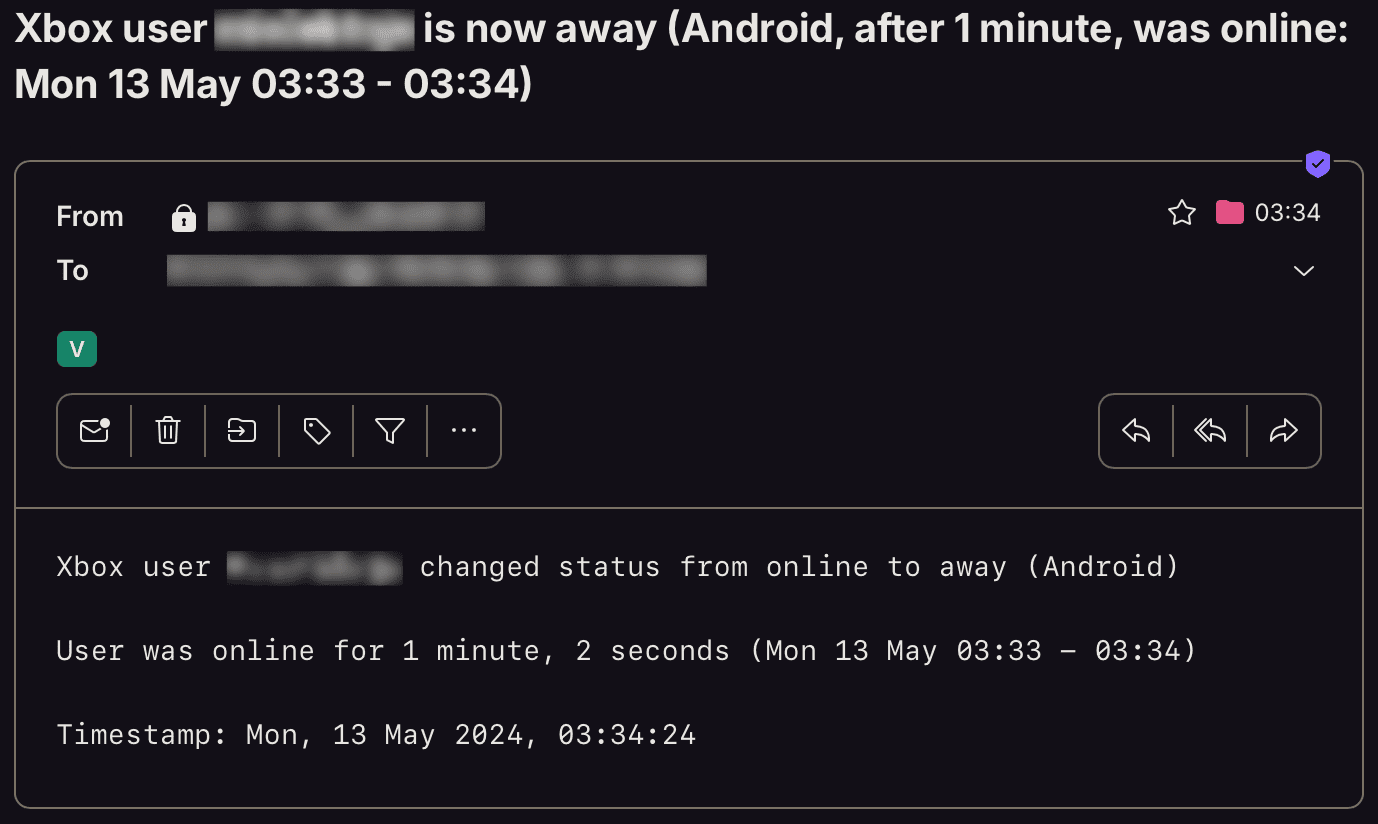
To be told about every status change, online, away or offline, set STATUS_NOTIFICATION to True or use -s:
To stop the error email and the recovery email that follows it, which are on by default, set ERROR_NOTIFICATION to False or use -e:
Email and webhook error alerts are sent after 5 minutes of a continuing temporary failure. Problems that need your action, such as expired credentials or a hidden profile, alert immediately. Each channel gets one alert until a check succeeds. Failed deliveries are retried after 5 minutes, with increasing waits up to an hour.
The failure alert is subject Xbox Monitor error: <what went wrong> (user: <gamertag>) and lists the fix, a link to the page that covers it, how many checks failed in a row, since when and when the next check runs. When the failure clears, a recovery alert goes to the channels that received the failure alert, so an alert is never left open.
Set the SMTP settings first.
Example email:
Webhook Notifications
Alerts can also go to a Discord channel or an ntfy topic. Once the webhook settings name a destination, each event type is switched on separately, the same way email alerts are: the user getting online or offline, a game starting, changing or stopping, every status change including away, plus monitoring errors. A monitoring error sends the same failure and recovery alerts email does. --no-webhook-error-notify switches both off.
The same settings have command-line equivalents for one run. Naming any single alert also switches the channel on:
xbox_monitor <xbox_gamertag> --webhook-game-change
xbox_monitor <xbox_gamertag> --webhook --no-webhook-error-notify
xbox_monitor <xbox_gamertag> --webhook-url <url>
--webhook-url leaves the private URL in your shell history, so prefer --set-webhook-url for anything permanent.
Verify the destination without starting monitoring:
A failed delivery is retried once. A rate limit waits the delay the service asked for and bounds it. Redirects are never followed. When both channels are enabled, each is delivered independently: an alert that reached Discord is not sent again just because the email failed.
CSV Export
To save every reported activity to a CSV file, set CSV_FILE or use -b:
The file is created if it does not exist.
Check Intervals
If you want to customize the polling intervals, use the -k and -c flags (or the corresponding configuration options):
XBOX_ACTIVE_CHECK_INTERVAL,-k: check interval when the user is online or away (seconds)XBOX_CHECK_INTERVAL,-c: check interval when the user is offline (seconds)
An active interval below 30 seconds invites the Xbox Live rate limiter, which stops the tool seeing anything. --doctor warns when the configured interval is that short.
Liveness Reminder
While nothing changes, the tool prints one reminder that it is still running:
* Monitoring healthy for <xbox_gamertag>. The user is online with no activity change since the last check
Liveness check, timestamp:  Mon 08 Sep 2026, 09:15:05
The reminder is timed in seconds, so it arrives at the same rate whichever check interval is in use. Set LIVENESS_CHECK_INTERVAL to change it (default: 86400, i.e. 24 hours) or to 0 to switch it off.
Anything the tool prints about the target restarts the countdown, so a busy run stays quiet.
Signal Controls (macOS/Linux/Unix)
The tool has several signal handlers implemented which allow to change behavior of the tool without a need to restart it with new configuration options / flags.
List of supported signals:
| Signal | Description |
|---|---|
| USR1 | Toggle email notifications when the user gets online or offline (-a) |
| USR2 | Toggle email notifications when the user starts, stops or changes a game (-g) |
| CONT | Toggle email notifications for every status change, online, away or offline (-s) |
| TRAP | Increase the check interval used while the user is online, by 30 seconds |
| ABRT | Decrease the check interval used while the user is online, by 30 seconds |
| HUP | Reload secrets from the dotenv file |
SIGHUP keeps command-line credentials and nonempty environment values exported before startup. Change those values and restart to replace them.
Send signals with kill or pkill, e.g.:
As Windows supports limited number of signals, this functionality is available only on Linux/Unix/macOS.
Coloring Log Output with GRC
You can use GRC to colour logs.
The bundled recipe follows the same colours as the live output. It also covers the other monitors in the family, so one copy in ~/.grc/ colours every tool's logs.
The padded listing tables are the exception. Their columns line up by width with no label or separator a recipe could recognise. A rule wide enough to read one tool's table would read across another's column boundaries, so those rows stay plain in a replayed log.
Add this to your GRC config at ~/.grc/grc.conf:
Copy conf.monitor_logs to ~/.grc/ and the log files are coloured when read through grc: