Setup & First Run
Run the setup wizard
Already installed? Run the setup command below for your installation and follow the prompts. Otherwise, start with Installation.
Setup asks who to monitor, the application credentials, how often to check and which alerts and output files you want. It also runs the first authorization for you. You can review your answers before saving. Regular settings go in xbox_monitor.conf and private values go in .env. Keep .env private.
Press Enter to accept a default or Ctrl+C to cancel. Cancelling before saving leaves your files untouched. Cancelling after saving keeps the saved settings. For changes to an existing setup, see Configuration File.
After saving, follow the offered Doctor checks and monitoring steps.
A target is the Xbox gamertag you want to monitor. The wizard asks for the Microsoft Entra application credentials and then runs the first authorization. See Microsoft Entra Application Credentials for how to create them.
The polling prompts accept plain seconds or the s, m, h and d units. They show both the seconds and a readable form of the default.
With a saved target, running Xbox Monitor without a target starts monitoring that account. If no target is saved, an interactive no-argument run offers setup.
Before you start
You need three things before the first monitoring run:
- An Xbox target. Use the gamertag, not the Microsoft account e-mail address and not the real name. A gamertag copied out of a profile link works too. Quote one that contains spaces.
- Microsoft Entra application credentials. See Microsoft Entra Application Credentials.
- The monitored account must allow others to see it online. See User Privacy Settings.
Microsoft Entra Application Credentials
The tool signs in to Xbox Live through an application you register yourself, so the credentials stay yours. The portal is Microsoft Entra ID, previously called Azure AD.
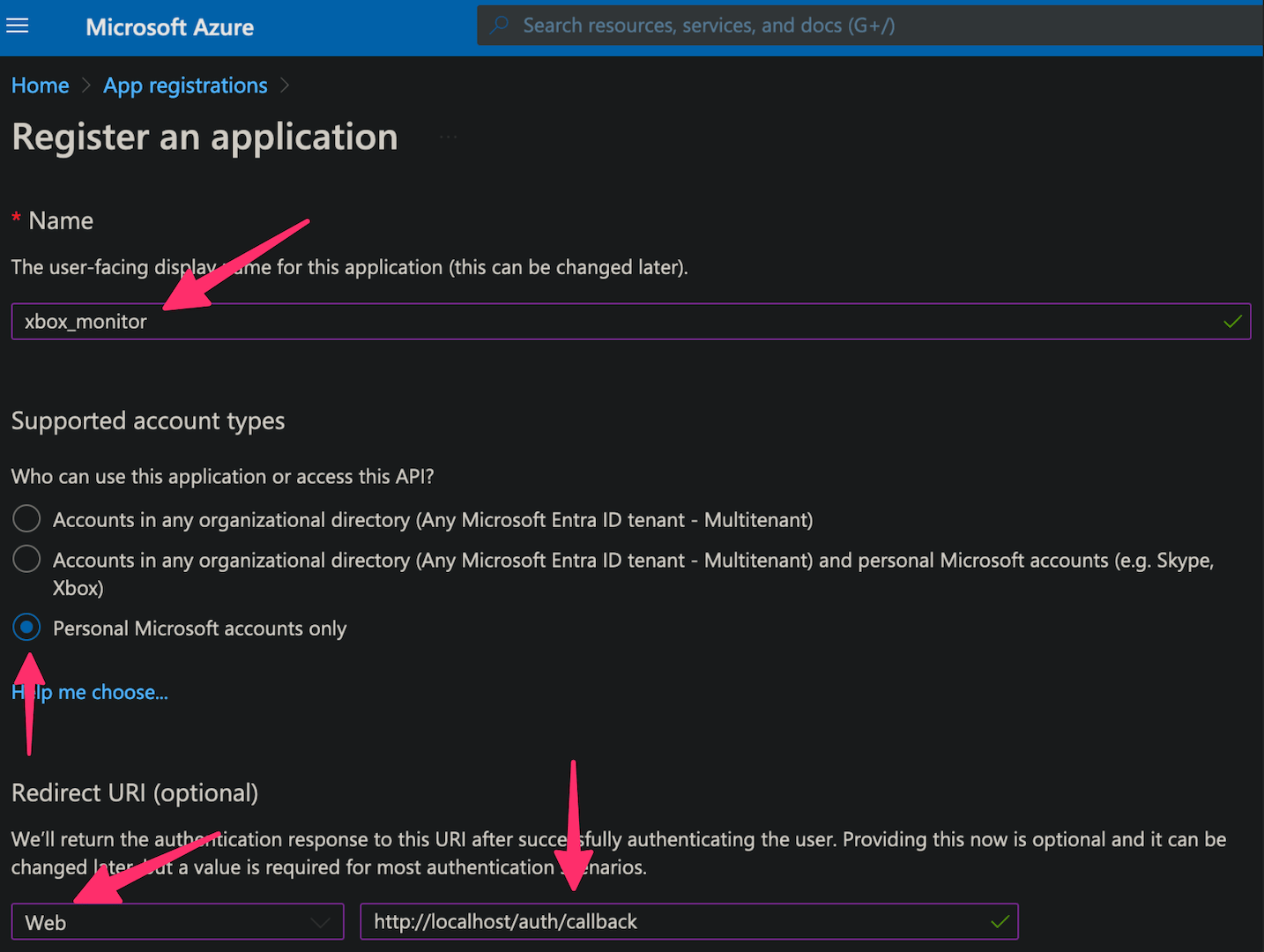
Register a new application:
- Name it, for example xbox_monitor
- For account type select Personal Microsoft accounts only
- For redirect URI select the Web type and enter
http://localhost/auth/callback
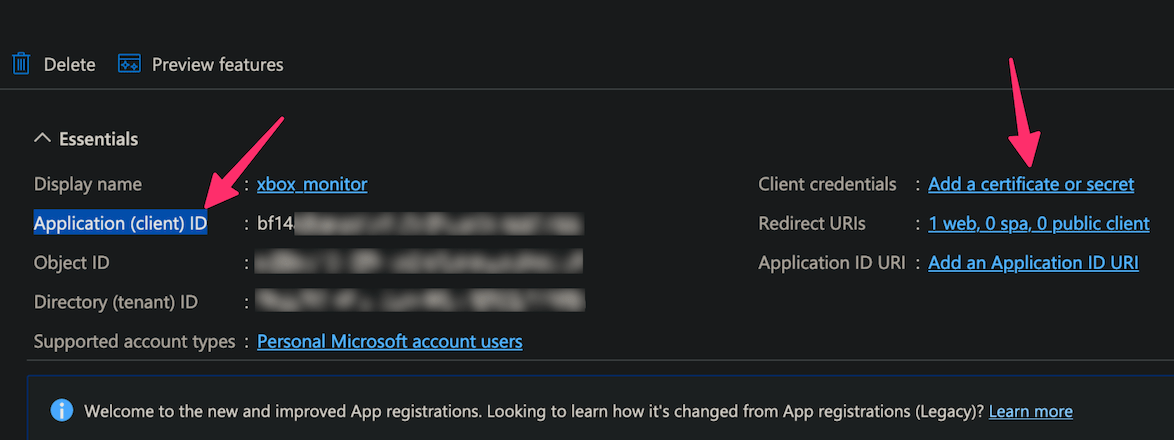
Copy the value of Application (client) ID into MS_APP_CLIENT_ID.
Next to Client credentials click Add a certificate or secret.
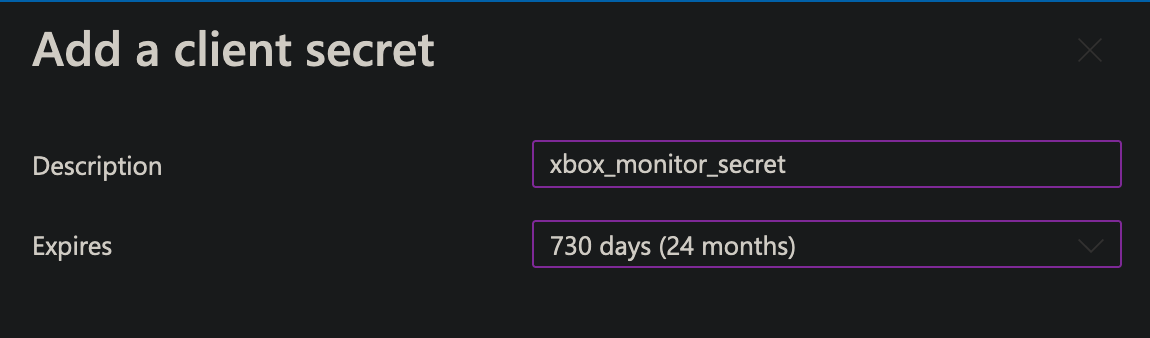
Add a new client secret with a description such as xbox_monitor_secret and a long expiry, such as two years.
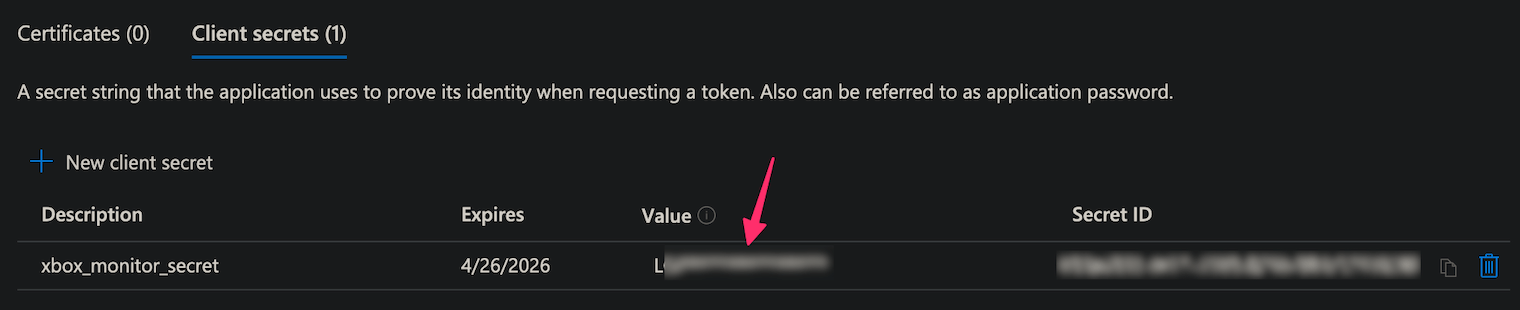
Copy the contents of the Value column into MS_APP_CLIENT_SECRET. The portal shows this value once.
Supply the two secrets in one of these ways:
- Let
--setupor--set-ms-app-credentialsask for them through a hidden prompt and save them to the dotenv file - Pass them at runtime with
-u/--ms-app-client-idand-w/--ms-app-client-secret - Export them as environment variables
- Put them in a dotenv file for persistent use
As a fallback they can also go in the configuration file or the source.
If they live in a dotenv file, you can change their values and send SIGHUP to the running process to reload them without a restart. See Storing Secrets and Signal Controls.
--doctor reports which secrets are loaded and which source each one came from, by name and never by value.
First Authorization
The first run performs OAuth2 authorization with the credentials you supplied. --setup and --set-ms-app-credentials run the same flow right after collecting the credentials, so the tokens are already in place before monitoring starts. The tool prints a URL to open in a browser.
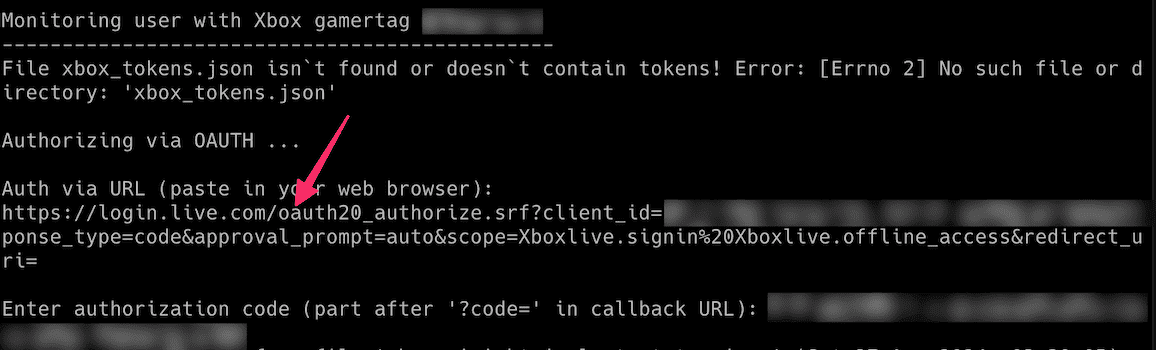
The browser is then redirected to localhost and shows a connection error. That is expected. Copy the part after ?code= from the address bar, leaving out the trailing &state= part. Paste that into the tool.

The tokens are saved to the file named by MS_AUTH_TOKENS_FILE, xbox_tokens.json in the current directory by default, so a restart does not ask again. The file holds a live refresh token, so it is created readable only by its owner.
--doctor never runs this flow, because it writes no files. It reports a missing token cache as a warning naming the command that creates one.
User Privacy Settings
Monitoring only works when the monitored account allows it.
The monitored user should open the Xbox profile privacy and online safety settings.
Set Others can see if you're online to Friends or Everyone. Setting Others can see your Xbox profile details the same way is recommended.
When the profile hides its activity, the tool reports it as a privacy setting on that account rather than a credential problem. --doctor says the same.
Not sure which command you need?
| I want to... | Run this |
|---|---|
| Set up Xbox Monitor for the first time | Use the setup command for your installation above |
| Start monitoring with existing credentials | xbox_monitor "<xbox_gamertag>" |
Start the account saved in XBOX_GAMERTAG |
xbox_monitor --config-file xbox_monitor.conf |
| Check credentials, connectivity and one account | xbox_monitor --doctor "<xbox_gamertag>" |
| Most securely enter or replace the application credentials | Run xbox_monitor --set-ms-app-credentials and enter both at the hidden prompts |
| Save an SMTP password for email alerts | Run xbox_monitor --set-smtp-password |
| Send a test email | Run xbox_monitor --send-test-email |
| Set up webhook alerts | Run the setup wizard and choose webhook alerts |
| Save a new webhook URL | Run xbox_monitor --set-webhook-url |
| Send a test webhook | Run xbox_monitor --send-test-webhook |
| Show detailed account information and exit | xbox_monitor "<xbox_gamertag>" -i |
| Also show the friends list | xbox_monitor "<xbox_gamertag>" -i -f |
| Show recent achievements | xbox_monitor "<xbox_gamertag>" -i -r -n 10 |
| Write every change to a CSV file | xbox_monitor "<xbox_gamertag>" -b changes.csv |
| List every supported command-line flag | xbox_monitor --help |
Run Individual Commands
The examples below use PyPI. For a manual script, replace xbox_monitor with python3 xbox_monitor.py on macOS or Linux. Use python xbox_monitor.py on Windows and run it from the directory holding the script or give its full path. See Command Format by Installation Method.
Throughout this page <xbox_gamertag> means the Xbox gamertag you want to monitor. Quote it when it contains spaces.
Save the application credentials
To configure credentials without the wizard, --set-ms-app-credentials is the recommended and most secure entry method. It reads the client ID and client secret through hidden prompts, so neither value appears on screen or in the command line, then runs the first authorization straight away.
Use --env-file PATH to select another .env file. The -u and -w options still work, but their values may appear in shell history or process listings.
Save notification credentials
The SMTP password is entered through a hidden prompt, checked against the mail server and saved as SMTP_PASSWORD in .env:
A webhook URL is the private address used to deliver notifications. Treat it like a password because anyone who has it may be able to post through it. Follow the webhook setup steps then save the link:
The link is entered through a hidden prompt and saved as WEBHOOK_URL in .env. This command only saves the link. It does not turn on webhook alerts or send a message. See Webhook Settings to choose your alerts then run xbox_monitor --send-test-webhook to test them.
Start monitoring
The first example uses a positional gamertag. The second uses a saved XBOX_GAMERTAG:
For a manual script:
Check the setup before relying on it. The preflight report writes nothing and exits non-zero when something is wrong:
See Doctor Preflight for what it reports.
To see all supported command-line arguments and flags:
Next Step
Run Doctor before an unattended run to confirm credentials, connectivity and notification settings.
With the credentials saved and a first run working, continue to Configuration for the monitored account, SMTP, webhooks and secrets. See Usage for command formats, monitoring, listing commands, notifications and output files.