Usage
Command Format by Installation Method
Most examples on this page use the PyPI command spotify_monitor. If you chose another installation, replace only that command with the prefix in this table. Keep the targets and options that follow it.
| Installation | Command prefix |
|---|---|
| PyPI | spotify_monitor |
| Manual script on macOS or Linux | python3 spotify_monitor.py |
| Manual script on Windows | python spotify_monitor.py |
| Docker Compose | docker compose run --rm spotify_monitor |
Direct docker run on macOS or Windows PowerShell |
docker run --rm -it --init -v "${PWD}:/data:z" misiektoja/spotify-monitor:latest |
Direct docker run on native Linux |
docker run --rm -it --init --user "$(id -u):$(id -g)" -v "$PWD:/data:z" misiektoja/spotify-monitor:latest |
For example, spotify_monitor --doctor <spotify_target> becomes docker compose run --rm spotify_monitor --doctor <spotify_target> with Compose. The current host directory appears as /data inside the container, so container paths to its files must start with /data/.
The first docker run command works in macOS shells and Windows PowerShell with a Docker-compatible runtime that provides the docker CLI. In Windows Command Prompt replace ${PWD} with %cd%.
The manual-script examples assume the current directory contains spotify_monitor.py. If you installed in a virtual environment, activate it before using the printed commands. Setup and recovery commands retain your selected configuration and .env paths.
See Installation for setup, optional dependencies, image details and upgrade commands.
Monitoring Mode
Pass the friend you want to monitor as a command-line target. The easiest form is the complete profile URL described in How to Find a Friend's Spotify Profile URL. A spotify:user: URI or user ID is also accepted:
spotify_monitor "https://open.spotify.com/user/USER_ID?si=tracking_id"
spotify_monitor "spotify:user:USER_ID"
spotify_monitor USER_ID
You can also save any of these forms as TARGET_USER_URI_ID in spotify_monitor.conf. A positional target takes precedence. With a saved target no positional value is needed:
The setup wizard asks whether to save the target. A saved target lets a local installation start with spotify_monitor and lets Docker Compose start with docker compose up --no-log-prefix.
If you use cookie authentication and have not saved SP_DC_COOKIE, the -u fallback supplies it for one run:
This command can expose the cookie through shell history or process listings. Use browser import when available. For a manually extracted cookie, use the recommended --set-sp-dc command because its hidden prompt is the most secure entry method.
If you have working legacy OAuth app credentials and want the tool to try the Web API metadata path first, use -r:
spotify_monitor <spotify_target> -u "your_sp_dc_cookie_value" -r "your_spotify_app_client_id:your_spotify_app_client_secret"
See Spotify OAuth App for the optional dependency and current compatibility guidance.
By default the tool looks for spotify_monitor.conf in this order:
- The path supplied with
--config-file spotify_monitor.confin the current directory~/.spotify_monitor.confin the home directoryspotify_monitor.confin the script directory
Specify another file explicitly when needed:
The tool runs until you press Ctrl+C. On macOS, Linux or Unix, tools such as tmux or screen can keep it running after you disconnect from a terminal. Docker Compose can run in the background as described below.
You can monitor multiple Spotify friends by running multiple copies with separate output names or directories.
By default, text output is saved to spotify_monitor_<user_uri_id/file_suffix>.log. Change the base path with SP_LOGFILE and the suffix with FILE_SUFFIX or -y. Disable file logging with DISABLE_LOGGING or -d.
Set ASCII_LOG_SEPARATORS to "Auto" (default) to use ASCII separator-only lines on Windows, "On" to use them on every operating system or "Off" to preserve Unicode separators in logs everywhere. Terminal separators stay Unicode. Log files and all other logged text remain UTF-8.
Track shows what the user is playing right now. Last played shows the last shared track after playback stopped, which does not prove that the track finished. Track changes are detected at the polling interval, so counts describe observed tracks rather than completed plays. See Friend Activity Backend for details and the legacy completed-track option.
Scrobble Health Mode
Spotify's six-month re-authorization requirement can disconnect Spotify Scrobbling while Last.fm currently warns only through a website banner without an email alert.
This mode can notify through the console, email or a webhook (Discord, ntfy) when Spotify scrobbles stop showing up on Last.fm.
Run the focused setup wizard once:
The setup wizard walks you through the whole process. With complete local authentication it can run Doctor tests and then start scrobble health monitoring immediately.
This mode compares the authorized Spotify account's completed plays with Last.fm recent tracks. It matches artist and track names within a configurable time window. Last.fm's currently playing track is excluded.
The startup summary names both compared accounts: Target is the Last.fm profile and Spotify account is the account the recent-play authorization belongs to. That row reads Unknown when the account lookup does not succeed, which is also when alerts drop the Spotify side.
If you only need to enter or replace the Last.fm API key, run spotify_monitor --set-lastfm-credentials. The key is hidden during entry and saved to the selected dotenv file.
To authorize again after the Spotify refresh token expires or is revoked, run:
The command reuses the app Client ID and redirect URI from the selected config then saves the new SPOTIFY_SCROBBLE_REFRESH_TOKEN in the selected dotenv file. It opens the authorization page for local installs or prints the URL for Docker. In either case, paste the complete redirected URL from the browser address bar when prompted.
The focused wizard saves scrobble health config in spotify_monitor_scrobble_health.conf and secrets in .env.scrobble_health.
To run the tool in scrobble health mode later:
You can indicate Last.fm username to monitor via LASTFM_USERNAME in the scrobble health config file or by passing --lastfm-username as command line argument. Use --config-file when you want to select another saved scrobble health configuration.
You can also pass all the required credentials with --lastfm-api-key, --scrobble-client-id and --scrobble-refresh-token instead of config file. Use --scrobble-redirect-uri when the app does not register the default http://127.0.0.1:8888/callback. Private values may remain visible in shell history or process listings in such case.
To run Friend Activity with a scrobble health config, select Friend Activity and provide a Spotify target if TARGET_USER_URI_ID is not saved:
spotify_monitor --config-file spotify_monitor_scrobble_health.conf --monitor-mode friend_activity SPOTIFY_USER_ID
The scrobble health alert goes out by email and webhook by default. Turn either channel off for one run with --no-scrobble-health-notify or --no-webhook-scrobble-health-notify, or back on with --notify-scrobble-health or --webhook-scrobble-health.
Scrobble-specific settings have one-run options, so every comparison control can be changed without a config file:
spotify_monitor --monitor-mode scrobble_health --scrobble-min-unmatched 7 --scrobble-dead-period 1800 --scrobble-check-interval 180 --scrobble-match-window 240 --scrobble-lookback 18000 --scrobble-repeat-interval 0 --scrobble-state-file scrobble-state.json
Use focused Doctor checks before leaving it unattended:
Doctor checks access to Spotify recent plays and Last.fm tracks, then prints the matching monitoring command. It preserves alert history but may save a replacement Spotify refresh token if the service rotates it.
To inspect the actual Spotify and Last.fm track histories instead of only their counts, add --verbose:
The verbose focused report lists recent Spotify plays with MATCHED or NOT MATCHED markers, matched Last.fm timestamps and the recent Last.fm scrobbles used for comparison. Spotify and Last.fm can timestamp different points in the same playback, so a matched pair does not always have identical times.
Container Operation
See Docker installation for installation, Linux file ownership, local image builds and upgrades. This section covers everyday use after setup.
Compose makes the current host directory available as /data inside the container. The wizard creates spotify_monitor.conf and .env in that host directory. Logs and CSV output are also written there. The image does not contain your configuration or private values.
Start the target saved by setup in the foreground:
This short command uses /data/spotify_monitor.conf and /data/.env from docker-compose.yml. If setup saved either file under another /data path, use the explicit docker compose run command printed by setup.
For a background run and live logs:
Stop and remove the service container:
This command does not delete files in the current directory.
If the wizard did not save the target, docker compose up --no-log-prefix cannot supply one. Use the direct Compose command printed by setup:
docker compose run --rm spotify_monitor "https://open.spotify.com/user/USER_ID" --config-file /data/spotify_monitor.conf --env-file /data/.env
Import Firefox into Container Authentication
Spotify Monitor stores the imported SP_DC_COOKIE in /data/.env. Keep the same /data mount and --env-file /data/.env option during import and later runs.
Guided setup asks which host environment runs Docker then prints the matching command below. Doctor is deferred until the import succeeds so an expected missing cookie is not reported as a setup failure.
Windows PowerShell
Use Docker Desktop or another Docker-compatible runtime in Linux container mode. Firefox stores the profile root under $env:APPDATA\Mozilla\Firefox.
Direct Docker:
docker run --rm -it --init -v "${PWD}:/data:z" -v "$env:APPDATA\Mozilla\Firefox:/home/spotify/.mozilla/firefox:ro" misiektoja/spotify-monitor:latest --import-browser-cookie --browser firefox --env-file /data/.env
Docker Compose:
docker compose run --rm -v "$env:APPDATA\Mozilla\Firefox:/home/spotify/.mozilla/firefox:ro" spotify_monitor --import-browser-cookie --browser firefox --env-file /data/.env
Windows Command Prompt
Use %cd% for the current project directory and %APPDATA% for the Firefox profile root.
Direct Docker:
docker run --rm -it --init -v "%cd%:/data:z" -v "%APPDATA%\Mozilla\Firefox:/home/spotify/.mozilla/firefox:ro" misiektoja/spotify-monitor:latest --import-browser-cookie --browser firefox --env-file /data/.env
Docker Compose:
docker compose run --rm -v "%APPDATA%\Mozilla\Firefox:/home/spotify/.mozilla/firefox:ro" spotify_monitor --import-browser-cookie --browser firefox --env-file /data/.env
Linux with a standard Firefox package
Direct Docker:
docker run --rm -it --init --user "$(id -u):$(id -g)" -v "$PWD:/data:z" -v "$HOME/.mozilla/firefox:/home/spotify/.mozilla/firefox:ro" misiektoja/spotify-monitor:latest --import-browser-cookie --browser firefox --env-file /data/.env
Docker Compose:
docker compose run --rm -v "$HOME/.mozilla/firefox:/home/spotify/.mozilla/firefox:ro" spotify_monitor --import-browser-cookie --browser firefox --env-file /data/.env
Linux with Firefox from Snap
Direct Docker:
docker run --rm -it --init --user "$(id -u):$(id -g)" -v "$PWD:/data:z" -v "$HOME/snap/firefox/common/.mozilla/firefox:/home/spotify/.mozilla/firefox:ro" misiektoja/spotify-monitor:latest --import-browser-cookie --browser firefox --env-file /data/.env
Docker Compose:
docker compose run --rm -v "$HOME/snap/firefox/common/.mozilla/firefox:/home/spotify/.mozilla/firefox:ro" spotify_monitor --import-browser-cookie --browser firefox --env-file /data/.env
Linux with Firefox from Flatpak
Direct Docker:
docker run --rm -it --init --user "$(id -u):$(id -g)" -v "$PWD:/data:z" -v "$HOME/.var/app/org.mozilla.firefox/.mozilla/firefox:/home/spotify/.mozilla/firefox:ro" misiektoja/spotify-monitor:latest --import-browser-cookie --browser firefox --env-file /data/.env
Docker Compose:
docker compose run --rm -v "$HOME/.var/app/org.mozilla.firefox/.mozilla/firefox:/home/spotify/.mozilla/firefox:ro" spotify_monitor --import-browser-cookie --browser firefox --env-file /data/.env
macOS
Mount the Firefox profile root at the standard container location. The importer reads profiles.ini and offers profile selection when needed.
Direct Docker:
docker run --rm -it --init -v "${PWD}:/data:z" -v "${HOME}/Library/Application Support/Firefox:/home/spotify/.mozilla/firefox:ro" misiektoja/spotify-monitor:latest --import-browser-cookie --browser firefox --env-file /data/.env
Docker Compose:
docker compose run --rm -v "${HOME}/Library/Application Support/Firefox:/home/spotify/.mozilla/firefox:ro" spotify_monitor --import-browser-cookie --browser firefox --env-file /data/.env
Firefox works inside Docker because its cookie database can be mounted as a read-only file. Chrome, Brave and Chromium need the host password service to decrypt their cookies. A container cannot use that service. Import from those browsers through a local PyPI or manual installation instead.
Do not add :z or :Z to the whole Firefox profile mount. Those suffixes can change SELinux labels on the host files. If SELinux blocks the read-only mount, close Firefox and copy cookies.sqlite to a dedicated directory before mounting that copy.
After import, normal Compose runs read SP_DC_COOKIE from the host .env file. You do not need to mount Firefox again. If browser import is unavailable on another host, use the recommended --set-sp-dc command. Its hidden prompt is the most secure way to enter a manually extracted cookie.
Host Spotify auto-play is unavailable by default inside a container because the container cannot control the Spotify client running on the host. Run Spotify Monitor locally if you need TRACK_SONGS or --track-in-spotify. The tool warns but does not disable the setting so custom host integration remains possible.
Terminal Output
Use --help for examples grouped by task and matched to your installation.
Monitoring mode prints the settings that are actually in effect before the first check.
Optional features appear once you switch them on.
Use --verbose or --debug for the full startup summary, including output paths, notification settings, secret sources and runtime information.
Use --truncate N or TRUNCATE_CHARS to limit screen line width. Set it to 999 to detect the terminal width automatically. Truncation does not change log files and is ignored when logging is disabled with -d.
The tool clears the terminal when monitoring starts. Set CLEAR_SCREEN to False to keep whatever is already on the screen.
The screen is never cleared when output is redirected to a file or a pipe, in debug mode or for a command that prints a result and exits, such as --doctor, --help and the test senders.
Two settings add detail to what a run prints. VERBOSE_MODE adds the decisions the run made and DEBUG_MODE adds timestamped technical traces. Both are off by default, both are independent of each other and both have a flag that wins over the file, --verbose and --debug. DELIVERY_CONFIRMATIONS is on by default and controls whether verbose mode confirms each delivered email and webhook alert. See Verbose and Debug Output.
Coloured Terminal Output
Spotify Monitor colours live terminal output and help by default. Saved log files stay plain text.
Turn colour off for one run with --no-color or permanently with COLORED_OUTPUT = False. Colour is also disabled for redirected output, NO_COLOR or an unsupported terminal. See Terminal Colours for details and Windows support.
Override individual colours with COLOR_THEME. It is merged over the built-in theme, so you only name the parts you want to change:
See Terminal Colours for every theme key and the accepted colour and style names.
Compact View
Compact view shows one line per song, so the screen keeps a running list of what the friend played. Turn it on with COMPACT_VIEW = True or for one run with --compact-view. It applies to Friend Activity monitoring.
27 Sep, 17:10:18: *** Friend is Active...
27 Sep, 17:10:18: [00] Sunday Bloody Sunday - U2 (War) [U2 Radio] (by Spotify)
27 Sep, 17:14:41: [04] What's Up? - 4 Non Blondes (Bigger, Better, Faster, More !) [U2 Radio] (by Spotify)
27 Sep, 17:19:02: *** Friend is Inactive...
The startup summary and first full report print as usual. After that, only listening activity, track changes, visibility changes, actionable errors or warnings and recovery messages are shown. Repeated failures are reported only when they change or recover.
Everything else goes to the log file only. That covers the full song reports, session summaries, replies to control signals plus verbose and debug output. Email and webhook alerts are sent as usual. With logging disabled (-d) this output is not kept anywhere and the startup summary says so.
Listing Mode
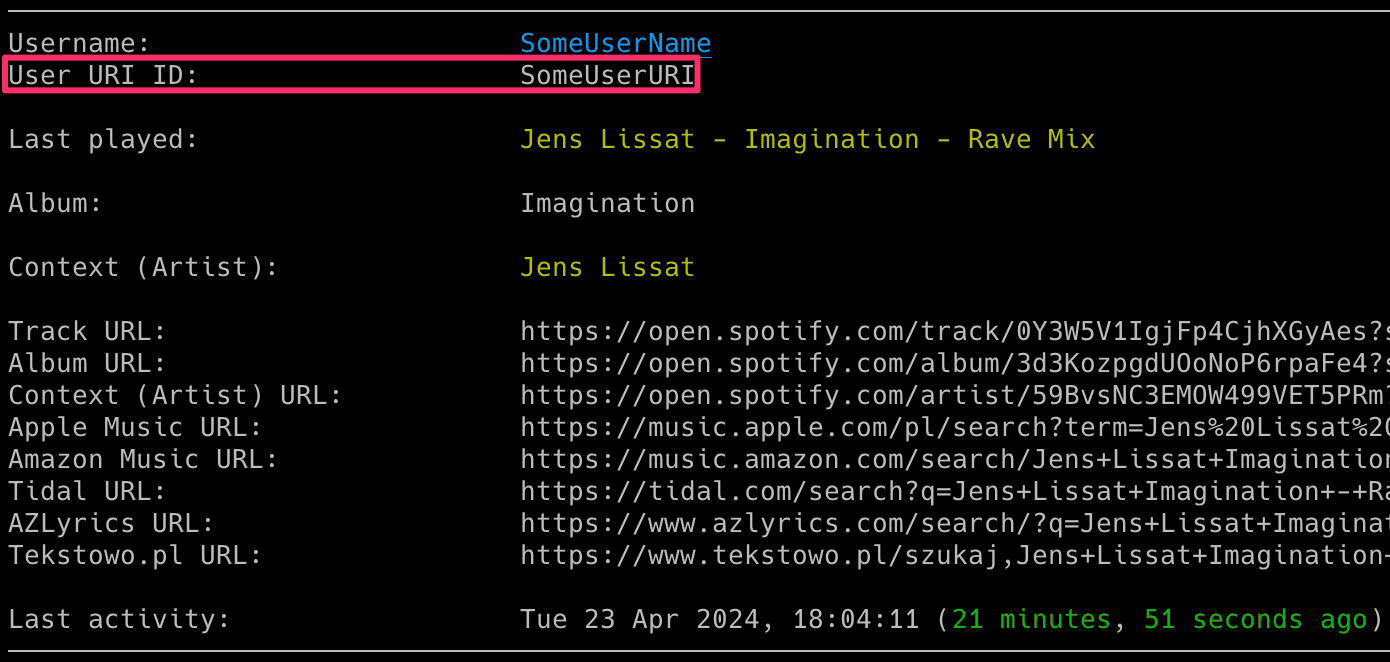
Listing mode shows the Spotify friends visible to the monitoring account and each person's most recently reported track:
The output includes each person's display name, Spotify user ID and profile URL. Either the user ID or profile URL can be used as a monitoring target.
The list ends with the users that only one Friend Activity backend shows, as display name (user ID) or the user ID alone when both are the same.
To monitor those users, save the suggested backend in the configuration file or include its --friend-activity-backend option on each run.
Email Notifications
To send an email when a user becomes active:
- set
ACTIVE_NOTIFICATIONtoTrue - or use the
-aflag
To send an email when a user becomes inactive:
- set
INACTIVE_NOTIFICATIONtoTrue - or use the
-iflag
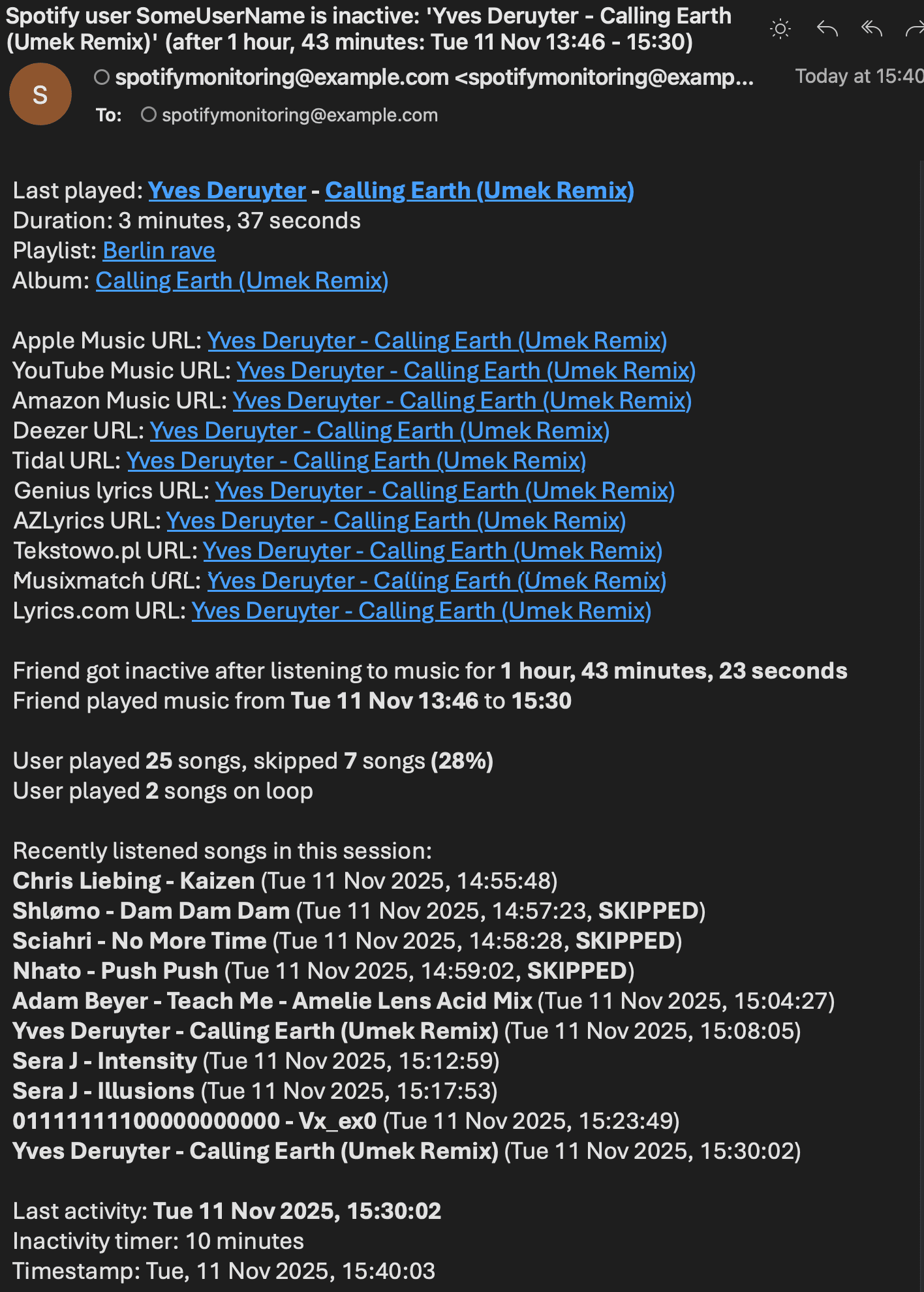
The inactive and active emails also report when the user is no longer visible in listening activity, for example during a private session, and when the user is visible again with the time away.
Inactivity emails list recent tracks from the session with their skipped status, how long the last track played and how long the user paused. Configure the number of recent songs to include via the INACTIVE_EMAIL_RECENT_SONGS_COUNT configuration option.
To send an email when a listed track, playlist or album plays:
- set
TRACK_NOTIFICATIONtoTrue - or use the
-tflag
Create a text file with one track, album or playlist per line. Select it with MONITOR_LIST_FILE or -s:
Example file spotify_tracks_USER_ID:
Start a line with # to ignore it.
To send an email for every reported song change:
- set
SONG_NOTIFICATIONtoTrue - or use the
-jflag
To send an email when a user repeats the same song:
- set
SONG_ON_LOOP_NOTIFICATIONtoTrue - or use the
-xflag
Error emails are enabled by default when SMTP is configured. To disable them:
- set
ERROR_NOTIFICATIONtoFalse - or use the
-eflag
An error alert goes out once the same failure has lasted 5 minutes, so a short outage or one lost request reaches nobody, while a failure that cannot clear on its own, such as an expired sp_dc cookie, is alerted at once. Each kind of failure alerts once per channel. A channel that could not deliver is tried again on a later failing check, after 5 minutes at first and then after twice the previous wait, up to an hour. A run that recovered alerts again when it fails later. The same rule governs the webhook error alert.
Every failure alert uses the subject Spotify Monitor (<mode>) error: <what went wrong> (user: <display name>, <user URI id>) and lists the fix, the guide link, how many checks failed in a row, since when and when the next retry happens. <mode> is Friend Activity or Spotify-to-Last.fm scrobble health and qualifies the tool name, so an inbox carrying both says which one failed. The user URI id is used alone until the target has been read once. Everywhere else the target is written as <display name> (<user URI id>), which is how the recovery alert and the console lines name it. When the failure clears, a recovery alert with the subject Spotify Monitor (<mode>) recovered: monitoring <target> resumed after <duration> follows on each channel that delivered the failure alert. In scrobble health mode the target names both sides of the comparison instead, as (spotify: <display name>, <user id>, last.fm: <lastfm username>), so a Spotify failure is not read as a problem with the Last.fm profile. The Spotify side is the account the recent-play authorization belongs to and is dropped when that lookup fails. The -e flag switches off the error email and the recovery email together. --no-webhook-error-notify does the same for the webhook. A channel that could not receive the failure alert while the outage lasted is told about the failure and its recovery together, so a blocked channel is not left without any word of an outage.
In scrobble health mode, the alert for missing and resumed scrobbles is sent by email when SCROBBLE_HEALTH_NOTIFICATION is True, which is the default. Use --notify-scrobble-health or --no-scrobble-health-notify to change it for one run:
All email alerts require valid SMTP settings.
Example email:
Webhook Notifications
The setup wizard recommends webhook alerts for active, inactive and error events. Choose the custom option to select events individually.
You can also change the settings yourself in spotify_monitor.conf or use a command-line option for one run:
| Event | Config setting | CLI override |
|---|---|---|
| User becomes active or is visible again | WEBHOOK_ACTIVE_NOTIFICATION |
--webhook-active |
| User becomes inactive or is no longer visible | WEBHOOK_INACTIVE_NOTIFICATION |
--webhook-inactive |
| Monitored track, playlist or album plays | WEBHOOK_TRACK_NOTIFICATION |
--webhook-track |
| Every song change | WEBHOOK_SONG_NOTIFICATION |
--webhook-song-changes |
| Song loop detected | WEBHOOK_SONG_ON_LOOP_NOTIFICATION |
--webhook-loop |
| Monitoring error | WEBHOOK_ERROR_NOTIFICATION |
Enable with --webhook-errors or disable with --no-webhook-error-notify |
| Missing or resumed scrobbles (scrobble health mode) | WEBHOOK_SCROBBLE_HEALTH_NOTIFICATION |
Enable with --webhook-scrobble-health or disable with --no-webhook-scrobble-health-notify |
A monitoring error webhook carries the same title and text as the error email, without the timestamp the provider adds itself. The recovery alert follows on the same channel when the failure clears.
For example, this sends a webhook alert for every song change during one run:
Use --webhook or --no-webhook to turn all configured webhook alerts on or off for one run. Standard Discord and public ntfy.sh URLs automatically correct a stale configured provider. Use --webhook-provider {discord,ntfy} as an explicit override for self-hosted ntfy or compatible endpoints. A tracked-song webhook alert uses the same song list as a tracked-song email alert.
The recommended way to save a private destination is still the hidden --set-webhook-url command. For automation or one-time testing, --webhook-url URL overrides the destination without changing .env:
spotify_monitor <spotify_target> --webhook-provider ntfy --webhook-url "https://ntfy.sh/your-private-topic" --webhook-song-changes
A URL passed on the command line may remain visible in shell history or process listings. See Webhook Settings for the setup wizard, advanced payload templates and dynamic headers.
CSV Export
To save reported songs in a CSV file, set CSV_FILE or use -b:
Spotify Monitor creates the file if it does not exist.
The setup wizard adds .csv if the filename has no extension. Declining CSV output during setup clears a previously saved CSV path.
Activity Flag File
Set FLAG_FILE or use --flag-file PATH to expose the monitored user's current activity state to another local tool. Spotify Monitor creates the file while the user is active and deletes it after the user becomes inactive:
For a container, place the file under /data so it appears in the host directory. Each concurrently monitored user should have a different flag path.
A stale flag is removed at startup. If it cannot be removed, the tool exits with an error. Later failures to create or remove the flag disable this integration for the rest of the run while monitoring continues. Check the error output and correct the path before restarting.
Automatic Playback of Listened Tracks in the Spotify Client
To play reported tracks in your local Spotify client:
- set
TRACK_SONGStoTrue - or use the
-gflag
The Spotify client must be installed and running.
Host Spotify auto-play is unavailable by default inside a container because the container cannot control the Spotify client running on the host. Run Spotify Monitor locally if you need TRACK_SONGS or --track-in-spotify. A container run prints one warning before monitoring and --doctor reports [WARN], but the setting is not disabled automatically.
On Linux and macOS, Spotify Monitor can play each reported track. It can also pause playback or play a selected track when the user becomes inactive. See SP_USER_GOT_OFFLINE_TRACK_ID.
Set SP_USER_GOT_OFFLINE_TRACK_ID to the raw Spotify track ID made only of ASCII letters and digits. Do not use a full Spotify URI or URL.
On Windows, the first track can start if Spotify is open and currently idle. Later tracks are opened in Spotify but may require you to press Play.
You can change the playback method per platform using the corresponding configuration option.
For macOS set SPOTIFY_MACOS_PLAYING_METHOD to one of the following values:
- "apple-script" (recommended, default)
- "trigger-url"
For Linux set SPOTIFY_LINUX_PLAYING_METHOD to one of the following values:
- "dbus-send" (most common one, default)
- "qdbus" (try if dbus-send does not work)
- "trigger-url"
For Windows set SPOTIFY_WINDOWS_PLAYING_METHOD to one of the following values:
- "start-uri" (recommended, default)
- "spotify-cmd"
- "trigger-url"
Keep the default method unless playback does not work on your system.
Automatic playback starts a track when the friend starts playing or changes track. On Linux and macOS it follows pauses and resumes without restarting the track. Starting the monitor while the friend is paused does not start local playback. It does not seek to the friend's playback position. The inactivity timer still controls session-end actions. If the friend's pause already paused your client, inactivity does not pause it again, so music you started after that keeps playing. A track set in SP_USER_GOT_OFFLINE_TRACK_ID still plays on inactivity. Differences in track length can make your local track repeat or change before it finishes.
For Last.fm-based track progress monitoring, see lastfm_monitor.
Check Intervals
If you want to customize the polling intervals, use the -k and -c flags (or the corresponding configuration options):
SPOTIFY_LIVE_ACTIVE_CHECK_INTERVAL,-k: check interval during a listening session (seconds)SPOTIFY_LIVE_CHECK_INTERVAL,-c: check interval when the user is not playing (seconds)
The defaults are 30 and 10 seconds. The shorter active interval catches pauses, resumes and track changes sooner. A failed check is retried after SPOTIFY_LIVE_ERROR_INTERVAL, one minute by default.
In the setup wizard, you can also enter durations such as 30s, 1.5h or 1h 30m. Supported units are s, m, h and d.
--doctor warns when an interval is below 5 seconds. The legacy backend keeps its own timers, see Legacy Backend.
For scrobble health, set the time between successful comparisons through SCROBBLE_HEALTH_CHECK_INTERVAL or --scrobble-check-interval:
Scrobble health uses SPOTIFY_ERROR_INTERVAL after a failed comparison, with a default of three minutes. Its failure alert follows the same 5 minute rule Friend Activity uses. See Last.fm Scrobble Health for alert and retry behavior.
Each check that reports playback keeps the session active, including during long tracks. After playback stops, the inactivity timer starts at the pause moment. Set the number of seconds through SPOTIFY_LIVE_INACTIVITY_CHECK or -o, three minutes by default:
When the user is no longer visible, for example during a private session, the tool reports it and checks every SPOTIFY_LIVE_DISAPPEARED_CHECK_INTERVAL seconds, 30 by default, until the user returns, then reports how long the user was away. A shorter interval times the return more closely. -m sets the timer of the selected backend, the legacy one is SPOTIFY_DISAPPEARED_CHECK_INTERVAL with a default of three minutes:
Liveness Reminder
In Friend Activity mode, while nothing changes, the tool prints one reminder that it is still running:
* Monitoring healthy for <spotify_target>. The target is visible with no activity change since the last check
Liveness check, timestamp:  Mon 08 Sep 2026, 09:15:05
Set LIVENESS_CHECK_INTERVAL to change it (default: 86400, i.e. 24 hours) or to 0 to switch it off.
Anything the tool prints about the target restarts the countdown, so a busy run stays quiet.
Scrobble health mode prints Scrobble health monitor running for <lastfm_username>. Current result: <result>. instead. See Doctor Preflight for what each result means.
Signal Controls (macOS/Linux/Unix)
The tool has several signal handlers implemented which allow to change behavior of the tool without a need to restart it with new configuration options / flags.
List of supported signals:
| Signal | Description |
|---|---|
| USR1 | Toggle active and inactive email notifications (-a, -i) |
| USR2 | Toggle every-song email notifications (-j) |
| CONT | Toggle tracked-song email notifications (-t) |
| PIPE | Toggle loop email notifications (-x) |
| TRAP | Increase the inactivity timer by 30 seconds (-o) |
| ABRT | Decrease the inactivity timer by 30 seconds (-o) |
| HUP | Reload private values from .env, clear keys removed from that file and reload token credentials from Protobuf files |
SIGHUP keeps command-line credentials and nonempty environment values exported before startup. Change those values and restart to replace them.
Send signals with kill or pkill, e.g.:
As Windows supports limited number of signals, this functionality is available only on Linux/Unix/macOS.
Coloring Log Output with GRC
Spotify Monitor colours live terminal output through COLORED_OUTPUT and COLOR_THEME. To colour saved log files when you view them later, you can use GRC.
The bundled recipe follows the same colours as the live output. It also covers the other monitors in the family, so one copy in ~/.grc/ colours every tool's logs.
Add to your GRC config (~/.grc/grc.conf):
Copy conf.monitor_logs to ~/.grc/. Then view a log through grc: