Configuration
Examples on this page use the PyPI command spotify_monitor. Manual script, Docker Compose and direct Docker users should keep the shown options and use the matching prefix under Command Format by Installation Method. Container file paths must point into /data.
Configuration File
You can pass most settings as command-line options or save them in a configuration file for later runs.
The easiest way to create this file is spotify_monitor --setup. Friend Activity setup defaults to spotify_monitor.conf plus .env. Scrobble health setup uses spotify_monitor_scrobble_health.conf plus .env.scrobble_health so both modes can be configured independently.
To edit every available setting yourself, generate a default configuration file:
# On macOS, Linux or Windows Command Prompt (cmd.exe)
spotify_monitor --generate-config > spotify_monitor.conf

# On Windows PowerShell (recommended to avoid encoding issues)
spotify_monitor --generate-config spotify_monitor.conf
Windows PowerShell: Pass the filename directly to
--generate-config. PowerShell redirection can write UTF-16, which the tool rejects with a "null bytes" error.
When the named file already exists, --generate-config asks before replacing it and keeps a timestamped .bak backup next to it. Add --force to replace it without the question.
The file contains a short explanation above each setting.
A configuration file is read as data, not executed. The tool accepts only SETTING = value lines where the name is one of the documented settings and the value is a plain literal such as a string, number, True, False, None, a list or a dictionary. Comments and blank lines are fine.
Imports, function calls, expressions and unknown settings are rejected with the setting and line number to correct.
If the same setting appears in more than one place, the item later in this list wins:
- Built-in defaults
- The discovered or explicitly selected configuration file
- Values from the selected
.envfile - Secret environment variables
- Command-line options
By default the tool looks for a configuration file named spotify_monitor.conf in the current directory, the home directory (~) and the script directory. Use --config-file to name another location or --config-file none to disable automatic config discovery for one run.
Monitored Target
In Friend Activity mode the Spotify target is a positional argument. It is required to start monitoring:
The target can be a complete profile URL, a spotify:user: URI or a user ID.
To stop repeating it, save it in the configuration file:
TARGET_USER_URI_ID accepts the same forms as the command line. Then spotify_monitor alone starts monitoring that user. A positional argument still wins, so you can watch someone else for one run without editing the file:
Following the Monitored User
The target must share listening activity with the monitoring account, the Spotify account behind the sp_dc cookie or client credentials. Spotify offers two sharing settings:
- All followers: the monitoring account must follow the target.
- Selected people: the target selects the monitoring account. Following is not required.
Setup first checks whether the target shares listening activity with the monitoring account. It reads the follow state only when the target is not visible. If the monitoring account does not follow such a target, setup offers to follow it. It sends the request only after you confirm. This works in cookie and advanced client modes without a separate OAuth token. If the follow step fails, or you configure authentication outside the wizard, follow the target manually in the Spotify desktop or mobile app.
If only the other Friend Activity backend lists the target, setup offers to switch to that backend instead. It asks for that backend's polling interval and saves both in the configuration file.
Doctor reports whether the monitoring account follows an invisible target, so you know which setting to fix.
How to Find a Friend's Spotify Profile URL
Use the Spotify desktop or mobile app:
- go to your friend's profile
- click the three dots (•••) or press the Share button
- copy the link to the profile
You'll get a URL like https://open.spotify.com/user/USER_ID?si=tracking_id.
Pass that profile URL directly to the tool. You do not need to extract the ID. A Spotify user URI such as spotify:user:USER_ID or a standalone user ID is also accepted.
Alternatively you can use Listing mode to see the Spotify user IDs and profile URLs of accounts you follow. Either displayed form can be used as the monitoring target.
Monitoring Mode
Spotify Monitor has two independent monitoring modes:
| Mode | Saved MONITOR_MODE value |
What it monitors | Easiest setup |
|---|---|---|---|
| Friend Activity | "friend_activity" |
A Spotify user's shared tracks, playback state and listening sessions | spotify_monitor --setup |
| Scrobble health | "scrobble_health" |
Whether this Spotify account's completed plays reach one Last.fm profile | spotify_monitor --setup-scrobble-health |
Only one mode runs at a time. A command-line selection takes precedence over the mode saved as MONITOR_MODE. Friend Activity is used when neither source selects a mode. Use --monitor-mode friend_activity or --monitor-mode scrobble_health for one run. Selecting scrobble health on the command line also selects its mode-specific default config and dotenv filenames. Save the Last.fm username as LASTFM_USERNAME or pass --lastfm-username for one run.
For example, this runs Friend Activity even when the selected config saves scrobble health as MONITOR_MODE:
spotify_monitor --config-file spotify_monitor_scrobble_health.conf --monitor-mode friend_activity SPOTIFY_USER_ID
Friend Activity Backend
Spotify Monitor by default follows Spotify's Listening Activity live feed, the source behind the Friend Activity panel in the desktop client. It shows the current track as soon as playback starts, reports pauses and skips and also includes friends who share their listening activity with selected people only. The feed lists up to 100 users. The live feed and the legacy endpoint can each list friends the other does not, so --list-friends compares both and names the differences. When only the other backend lists the target, setup offers to switch to it and save the choice. Doctor prints the setting to save plus a monitoring command to use each time if you keep the choice on the command line. That command does not change the configuration file. Doctor also tries the other backend when the request to the selected one fails and suggests the switch if that backend answers.
A session starts when playback is observed. Starting the tool while playback is stopped shows the last shared track. During a session, the tool reports each pause and its length. A pause keeps the session open and the session ends when the inactivity timer runs out after playback stops.
The feed drops a user who starts a private session, turns off activity sharing, blocks the monitoring account or, when sharing with all followers, is no longer followed by it. The tool cannot tell these causes apart. After SPOTIFY_LIVE_DISAPPEARED_COUNTER checks in a row without the user, it reports is no longer visible in listening activity and checks every SPOTIFY_LIVE_DISAPPEARED_CHECK_INTERVAL seconds (-m) until the user returns, then reports is visible again after with the time away. After six hours away it prints the follow and sharing advice once, since a private session ends sooner. These reports use the inactive and active notification settings. A session stays open while the user is away and its summary lists the time the user was not visible.
Songs on loop are counted when a song is played again from its start SONG_ON_LOOP_VALUE times.
To save this backend as the default, set FRIEND_ACTIVITY_BACKEND = "listening_activity" in the configuration file. Alternatively, include --friend-activity-backend listening_activity each time you run the tool:
Polling can miss short tracks and quick changes between checks.
| Setting | One-run option | Default | Purpose |
|---|---|---|---|
SPOTIFY_LIVE_CHECK_INTERVAL |
-c |
30 seconds | Time between checks while the user is not playing |
SPOTIFY_LIVE_ACTIVE_CHECK_INTERVAL |
-k |
10 seconds | Time between checks while a listening session is open |
SPOTIFY_LIVE_ERROR_INTERVAL |
60 seconds | Retry delay after a failed check | |
SPOTIFY_LIVE_INACTIVITY_CHECK |
-o |
180 seconds | Time without playback after which the session ends |
SPOTIFY_LIVE_DISAPPEARED_COUNTER |
2 checks | Checks in a row without the user before the absence is reported | |
SPOTIFY_LIVE_DISAPPEARED_CHECK_INTERVAL |
-m |
30 seconds | Time between checks while the user is not visible |
--doctor warns when an interval is below 5 seconds. The TRAP and ABRT signals adjust the inactivity timer. See Signal Controls for the full list.
Legacy Backend
The legacy Friend Activity endpoint (buddylist) was used by older versions of the tool and reports a track only after it finished, so tracks appear late, pauses are invisible and automatic playback runs one track behind. It also drops a user who has ever shared listening activity with selected people only, even after switching back to all followers. Such users are visible only through the live feed. The reverse also happens: a friend from an older approval, followed in both directions with sharing set to all followers, can keep appearing here with live updates after disappearing from the Spotify desktop client and the live feed. Such users can be monitored only through this backend.
To use the legacy endpoint, save FRIEND_ACTIVITY_BACKEND = "buddylist" in the configuration file or include --friend-activity-backend buddylist each time you run the tool:
The setting also applies to --list-friends, --doctor and cookie validation. It does not affect scrobble health. With --config-file none, only the command-line choice applies. To use a saved choice, select its configuration with --config-file PATH. The legacy backend has its own timers. -c, -o and -m set them when it is selected. The endpoint drops a user for a few checks now and then, so the tool reports has disappeared from Friend Activity only after REMOVED_DISAPPEARED_COUNTER checks in a row and prints the follow and sharing advice at once.
| Setting | One-run option | Default | Purpose |
|---|---|---|---|
SPOTIFY_CHECK_INTERVAL |
-c |
30 seconds | Time between checks |
SPOTIFY_ERROR_INTERVAL |
180 seconds | Retry delay after a failed check | |
SPOTIFY_INACTIVITY_CHECK |
-o |
660 seconds | Time after the last completed track after which the user is inactive |
REMOVED_DISAPPEARED_COUNTER |
4 checks | Checks in a row without the user before the disappearance is reported | |
SPOTIFY_DISAPPEARED_CHECK_INTERVAL |
-m |
180 seconds | Time between checks while the user is not visible |
Last.fm Scrobble Health
Spotify's six-month re-authorization requirement can disconnect Spotify Scrobbling. Last.fm currently warns about that disconnection only through a banner on its website and does not send an explicit email alert.
People who rarely visit the website can therefore continue listening without knowing that new scrobbles are not being saved. This mode provides independent console, email or webhook alerts once the configured evidence threshold confirms a likely gap.
Scrobble health checks whether completed plays from one Spotify account appear on one Last.fm profile. It uses Spotify's official recently-played endpoint rather than Friend Activity or SP_DC_COOKIE. It does not need a second Spotify account. It needs:
- A Last.fm profile from
LASTFM_USERNAMEor--lastfm-username - A read-only Last.fm API key from
LASTFM_API_KEYor--lastfm-api-key - A user-owned Spotify Developer app Client ID from
SPOTIFY_SCROBBLE_CLIENT_IDor--scrobble-client-id - A PKCE refresh token from
SPOTIFY_SCROBBLE_REFRESH_TOKENor--scrobble-refresh-token
The easiest setup is the focused wizard. It selects scrobble health as the saved mode and collects these values through hidden prompts where appropriate:
Before hidden API-key entry, the wizard shows the Last.fm API accounts page where you can create or view a key. Its comparison interval and dead-period prompts show both seconds and a compact duration. Enter seconds directly or add s for seconds, m for minutes, h for hours or d for days. Examples include 120, 120s, 2m, 1h and 1d.
For Friend Activity monitoring use the regular spotify_monitor --setup wizard instead.
To enter or replace only the Last.fm API key safely, run:
The command hides the key while you type or paste it. It confirms before replacing an existing value then updates only LASTFM_API_KEY in the selected dotenv file. Without --env-file, it uses .env.scrobble_health. Spotify Monitor does not request the Last.fm shared secret because scrobble health uses only the read-only user.getRecentTracks API method.
Config and dotenv files are optional. With LASTFM_API_KEY, SPOTIFY_SCROBBLE_CLIENT_ID and SPOTIFY_SCROBBLE_REFRESH_TOKEN already available as environment variables, only the profile needs a runtime option:
You can pass the credentials with --lastfm-api-key, --scrobble-client-id and --scrobble-refresh-token instead. Use --scrobble-redirect-uri if the app does not register the default redirect. Private values passed as arguments may remain visible in shell history or process listings.
The default alert requires five consecutive unmatched completed plays with the oldest at least 20 minutes old. This tolerates short Last.fm delays and occasional missing scrobbles. Missing scrobbles means these thresholds were met, but does not identify the cause. Alerts name the earliest missing play in the current comparison and list up to five recent missing plays. The relevant settings are:
| Setting | One-run option | Default | Purpose |
|---|---|---|---|
SCROBBLE_HEALTH_CHECK_INTERVAL |
--scrobble-check-interval |
180 seconds | Time between comparisons |
SCROBBLE_HEALTH_DEAD_PERIOD |
--scrobble-dead-period |
1200 seconds | Required age of the oldest unmatched play |
SCROBBLE_HEALTH_MIN_UNMATCHED |
--scrobble-min-unmatched |
5 plays | Required consecutive unmatched completed plays |
SCROBBLE_HEALTH_MATCH_WINDOW |
--scrobble-match-window |
300 seconds | Allowed timestamp difference for the same artist and track |
SCROBBLE_HEALTH_LOOKBACK |
--scrobble-lookback |
21600 seconds | Recent history included in each comparison |
SCROBBLE_HEALTH_REPEAT_INTERVAL |
--scrobble-repeat-interval |
86400 seconds | Minimum reminder interval while recent missing plays meet the alert threshold, use 0 to disable |
SCROBBLE_HEALTH_STATE_FILE |
--scrobble-state-file |
.spotify-monitor-scrobble-health.json |
Restart-safe alert state |
SCROBBLE_HEALTH_NOTIFICATION |
--notify-scrobble-health / --no-scrobble-health-notify |
True |
Email alerts for missing and resumed scrobbles |
WEBHOOK_SCROBBLE_HEALTH_NOTIFICATION |
--webhook-scrobble-health / --no-webhook-scrobble-health-notify |
True |
Webhook alerts for missing and resumed scrobbles |
Idle means no completed Spotify plays were returned within the comparison period. Waiting means missing plays have not reached the alert threshold. Scrobbles matched means recent Spotify plays were found on Last.fm.
A failed Spotify or Last.fm request produces Check failed, not a missing-scrobble alert. The monitor keeps earlier alert history and sends a failure alert once the same failure has lasted five minutes, the rule Friend Activity uses. After a brief retry for temporary connection or server failures, it waits for SPOTIFY_ERROR_INTERVAL, which defaults to three minutes. For rate-limit or QUOTA_EXCEEDED errors, see Troubleshooting.
Spotify Recent-play Authorization
Last.fm scrobble health requires a Spotify app owned by you.
The focused setup wizard guides these steps:
- Sign in to the Spotify Developer Dashboard with an account that has Spotify Premium.
- Create an app or open an existing app.
- Add the exact
http://127.0.0.1:8888/callbackredirect URI shown by setup. The wizard uses this recommended loopback value automatically instead of asking you to choose one. Spotify allows HTTP for an explicit loopback IP address but notlocalhost. - Select Web API in the API/SDKs section then save the app.
- Copy the Client ID into setup. Do not enter the Client Secret because PKCE does not use it.
- If another Spotify account will be authorized, add it under the app's User Management.
- Approve the read-only
user-read-recently-playedscope. After Spotify redirects, copy the complete URL from the browser address bar and paste it into setup. The browser page itself does not need to load.
Spotify documents the Dashboard flow in Creating an App and the authorization exchange in Authorization Code with PKCE Flow.
The Client ID and redirect URI are non-secret settings saved in spotify_monitor_scrobble_health.conf. Advanced setups can change SPOTIFY_SCROBBLE_REDIRECT_URI in that file then run authorization again. Use HTTPS for a non-loopback redirect. The refresh token is private and setup saves it as SPOTIFY_SCROBBLE_REFRESH_TOKEN in .env.scrobble_health. A Client Secret is never requested or stored.
To grant access again after the authorization expires or is revoked, run:
The command reuses the saved app settings, opens or prints a new state-protected authorization URL then replaces only the saved refresh token. Spotify refresh tokens expire after six months. A running process can load a replaced token after SIGHUP or you can restart it. This authorization is separate from reconnecting Spotify Scrobbling at Last.fm connected applications.
The printed Doctor and monitoring commands include the Client ID and redirect URI used for authorization. Keep these options on later runs or save SPOTIFY_SCROBBLE_CLIENT_ID and SPOTIFY_SCROBBLE_REDIRECT_URI in the configuration file you use. Authorization does not save those two settings.
Spotify Access Token Source
Spotify Monitor uses either the cookie or client token source for Friend Activity.
Track details and public playlist details normally come from Spotify's anonymous web-player service. If Spotify OAuth App credentials are present, Spotify Monitor tries that optional legacy API first (but it is not mandatory).
The token source method can be configured via the TOKEN_SOURCE configuration option or the --token-source flag.
Recommended: cookie
Uses an sp_dc browser cookie to request a Spotify access token. Use this method unless you specifically need advanced client mode.
Alternative: client
Uses login data captured from the Spotify desktop client. Setup requires an intercepting proxy and a saved Protobuf request body. This method is intended for advanced users.
If no method is specified, the tool defaults to the cookie method.
Spotify Monitor creates a suitable user agent automatically for the selected token source. A user agent is text that identifies the application making a request. Leave USER_AGENT empty unless you have a specific reason to override it.
Friend Activity is not available through Spotify's supported public Web API. Spotify can change or restrict the private endpoints used by this tool. Use a separate Spotify account if losing access to your main account would be unacceptable.
Spotify sp_dc Cookie
This is the default method used to obtain a Spotify access token.
For a local PyPI or downloaded-script installation, import a Firefox login. This works on macOS, Linux and Windows without an optional package. Docker and Docker Compose also support Firefox import through a one-time read-only host profile mount. Guided container setup asks for macOS or the matching Linux Firefox package then prints the correct command. See Import Firefox into Container Authentication for details.
Before importing, open Spotify Web Player in the browser you want to use and sign in to the Spotify account that follows the user you plan to monitor. Then return to the terminal and run the import command.
Which browsers are supported
The --browser flag accepts these values:
--browser |
Application it reads | Platforms |
|---|---|---|
firefox (default) |
Mozilla Firefox | macOS, Linux, Windows |
chrome |
Google Chrome | macOS, Linux |
brave |
Brave | macOS, Linux |
chromium |
The standalone open-source Chromium browser | macOS, Linux |
About chromium: Chromium is a separate browser application from Google Chrome. It has its own profiles and cookies. Choose chromium only if that is the browser you use. Choose chrome for Google Chrome.
Not currently supported: Microsoft Edge, Opera, Vivaldi, Arc and other Chromium-based browsers. Each application stores its cookies separately. The pycookiecheat library used by Spotify Monitor supports only the browsers in the table. To import a login, use one of those supported browsers.
On Windows, Chrome 127 and newer prevent external programs from reading these cookies through app-bound encryption. Use Firefox import instead.
On Windows, Firefox from the regular installer and from the Microsoft Store are both discovered. The Store package keeps its profiles under %LOCALAPPDATA%\Packages\Mozilla.Firefox_*\LocalCache\Roaming\Mozilla\Firefox, and its profiles are listed as [Microsoft Store] so the default-release that both installs create can be told apart. A redirected APPDATA or LOCALAPPDATA is followed as well as the home-relative location.
On Linux, Firefox profiles installed natively, through Snap or through Flatpak are discovered automatically. On every platform, the importer reads profiles.ini and normal profile directories. If one usable profile exists it is selected automatically. If several profiles exist an interactive terminal shows a numbered choice, marking each profile that holds a current Spotify login with *. When exactly one profile is marked it becomes the default and Enter accepts it. For scripts or other noninteractive runs select one by its friendly name or directory basename:
For a custom Firefox layout, the advanced --cookie-file PATH option points directly to a cookies.sqlite database. It overrides automatic profile selection:
By default, import writes only SP_DC_COOKIE to .env in the current directory. Use --env-file PATH to choose another .env file. Import does not change a file found only in a parent directory. --env-file none is invalid because the imported cookie must be saved.
Import validates the login before saving and asks before replacing a saved cookie. For noninteractive replacement, pass --force. This still validates the cookie and preserves unrelated .env settings.
Chrome, Brave and Chromium import is available on macOS and Linux through the optional browser extra:
Select a Chromium browser profile by its directory name, such as Default or Profile 1. Friendly names are also accepted.
On Linux, Brave and Chromium installed natively, through Snap or through Flatpak are discovered automatically. A native install is preferred when both are present. Google Chrome is only packaged natively. The profile choice marks a current Spotify login the same way the Firefox one does.
Chromium-based import does not work inside Docker because the container cannot use the host password service needed to decrypt the cookies. Use Firefox as shown under Container Operation. You can also perform a Chromium import with a local PyPI or manual installation.
Manual cookie extraction
Use manual extraction when browser import is unavailable. In containers it is the fallback when a Firefox host profile cannot be mounted. Treat sp_dc like a password because it represents a Spotify login session.
Follow these steps:
- Open Spotify Web Player and sign in to the Spotify account that follows the person you want to monitor.
- Open your browser's developer tools. Press
F12orCtrl+Shift+Ion Windows and Linux. PressCommand+Option+Ion macOS. - In Firefox, open Storage > Cookies >
https://open.spotify.com. - In Chrome, Brave or Chromium, open Application > Storage > Cookies >
https://open.spotify.com. - Find the cookie named
sp_dcand copy only its Value. Do not copy the cookie name or the complete table row. - Run the
--set-sp-dccommand for your installation and paste the value at the hidden prompt. The value will not appear on the screen.
As an alternative, Cookie-Editor by cgagnier can display the sp_dc value. Only use a browser extension that you trust because browser extensions can access sensitive login cookies.
The recommended --set-sp-dc command is the most secure way to enter a manually extracted cookie. It reads the value through a hidden prompt, validates it with Spotify before changing .env and updates only SP_DC_COOKIE. Existing cookie replacement requires confirmation. See the copy-paste commands for PyPI, downloaded-script, Docker Compose and Docker installations.
Direct .env editing and the other existing methods remain supported:
- Add
SP_DC_COOKIE="your_sp_dc_cookie_value"to an.envfile to keep it for later runs. - Set it as an environment variable, for example
export SP_DC_COOKIE="your_sp_dc_cookie_value". - Pass it for one run with
-uor--spotify-dc-cookie. This is not recommended because the value may appear in shell history or process listings. - Store it in the configuration file or source code as a last resort. This is not recommended because it is easier to expose or commit accidentally.
If sp_dc expires, Spotify Monitor reports the error in the console. It also sends the error through each enabled notification channel: email, Discord or ntfy. Extract a new cookie and replace the saved value.
If SP_DC_COOKIE is in .env, a running process on macOS, Linux or Unix can reload it after a SIGHUP signal. See Storing Secrets and Signal Controls.
TOTP parameters: Spotify's web-player token request currently uses v61. Spotify Monitor includes those values in
TOTP_VERSIONandTOTP_SECRET_CIPHER_BYTES. If Spotify changes them, use spotify_monitor_secret_grabber to read the current values from the web-player bundle and update both settings.
Spotify Desktop Client
Client mode reuses login data from a real Spotify desktop session. It is an advanced alternative to the sp_dc cookie method.
-
Run an intercepting proxy of your choice (like Proxyman - the trial version is sufficient)
-
Enable SSL traffic decryption for
spotify.comdomain- in Proxyman: click Tools → SSL Proxying List → + button → Add Domain → paste
*.spotify.com→ Add
- in Proxyman: click Tools → SSL Proxying List → + button → Add Domain → paste
-
Launch the Spotify desktop client, then switch to your intercepting proxy (like Proxyman) and look for POST requests to
https://login5.spotify.com/v3/login -
If you don't see this request, try following steps (stop once it works):
- restart the Spotify desktop client
- log out from the Spotify desktop client and log back in
- point Spotify at the intercepting proxy directly in its settings, i.e. in Spotify → Settings → Proxy Settings, set:
- proxy type:
HTTP - host:
127.0.0.1(IP/FQDN of your proxy, for Proxyman use the IP you see at the top bar) - port:
9090(port of your proxy, for Proxyman use the port you see at the top bar) - restart the app. This makes Spotify use a TCP connection that the proxy can inspect instead of QUIC over UDP
- proxy type:
- block Spotify's UDP port 443 with an operating system firewall. This also forces a TCP connection that the proxy can inspect
- try an older version of the Spotify desktop client
-
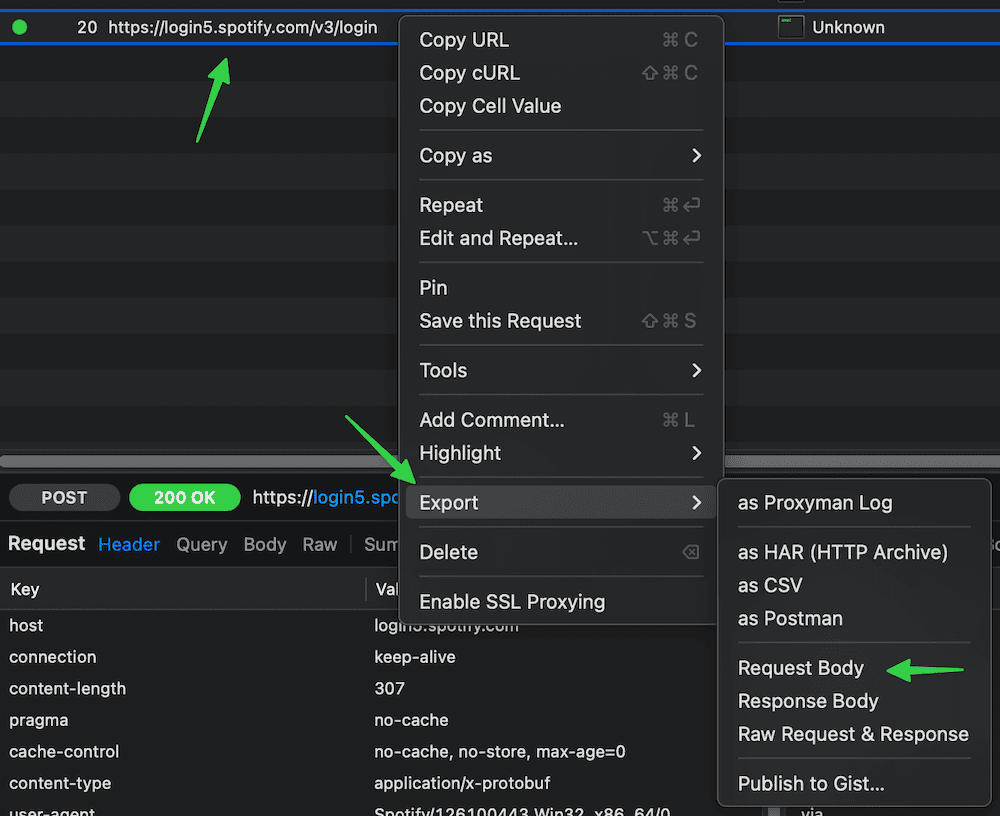
Export the login request body (a binary Protobuf payload) to a file (e.g. login-request-body-file)
- In Proxyman: right click the request → Export → Request Body → Save File.
- Run the tool with
--token-source client -w <path-to-login-request-body-file>:
Spotify Monitor reads the required fields from the saved request and starts monitoring.
To avoid passing -w each time, save the file path in LOGIN_REQUEST_BODY_FILE.
Also set TOKEN_SOURCE = "client" so later runs use client mode without the flag.
Spotify Monitor refreshes the access token and client token with the captured refresh token.
If the refresh token expires, Spotify Monitor reports the error in the console. It also sends the error through each enabled notification channel: email, Discord or ntfy. Export the login request body again.
If you re-export the login request body to the same file name, you can send a SIGHUP signal to reload the file with the new refresh token without restarting the tool. More info in Signal Controls (macOS/Linux/Unix).
The generated configuration file documents other client-mode settings. Keep their defaults unless you know that your captured client data requires different values.
Spotify OAuth App
Normal use does not need a Spotify OAuth app. This optional legacy path uses the Spotify Web API for track details and playlist owner details when Spotipy is installed. Configure it only if you already have a working app with verified access to the legacy endpoints. When this path is unavailable, Spotify Monitor falls back to web-player metadata.
Spotify requires the owner of every Development Mode app to keep an active Premium subscription. This applies to old and new apps. A Development Mode app stops working when the owner loses Premium and resumes after the owner resubscribes. An HTTP 403 is consistent with restricted legacy access but does not prove the cause by itself. The doctor checks this path live and reports a warning when web-player metadata succeeds. See Spotify's official migration guide.
If you already have a working app or want to create a new one:
-
Log in to Spotify Developer dashboard
-
Open an app owned by an account with active Spotify Premium and verified legacy endpoint access (or create new one)
-
Copy the Client ID and Client Secret
-
Provide the
SP_APP_CLIENT_IDandSP_APP_CLIENT_SECRETsecrets using one of the following methods:- Pass it at runtime with
-r/--oauth-app-creds(useSP_APP_CLIENT_ID:SP_APP_CLIENT_SECRETformat - note the colon separator) - Set it as an environment variable (e.g.
export SP_APP_CLIENT_ID=...; export SP_APP_CLIENT_SECRET=...) - Add it to .env file (
SP_APP_CLIENT_ID=...andSP_APP_CLIENT_SECRET=...) for persistent use - Fallback: hard-code it in the code or config file
- Pass it at runtime with
Example:
When configured the tool automatically refreshes the OAuth app access token. Tokens are cached in the file specified by SP_APP_TOKENS_FILE configuration option (default: .spotify-monitor-oauth-app.json).
If SP_APP_CLIENT_ID and SP_APP_CLIENT_SECRET are in .env, a running process on macOS, Linux or Unix can reload them after a SIGHUP signal. See Storing Secrets and Signal Controls.
SMTP Settings
Email notifications need SMTP server details for the sending account. Add them to spotify_monitor.conf or use the setup wizard. Setup checks the login without sending an email. To replace only the password, run spotify_monitor --set-smtp-password. Password entry is hidden and preserves spaces.
If email alerts are selected but local SMTP settings are missing or invalid, the startup summary shows Unavailable with the reason. Automatic email sends are skipped silently until the settings are fixed. Off means no email alert types are selected. An activity alert queued after a real delivery failure waits quietly while its channel is unavailable.
Every alert is sent as both HTML and plain text in one message, including the error and scrobble health alerts. Mail clients that render HTML show the friend name, the track, the session times and the values that changed in bold, with the track, album and playlist names linked to their Spotify pages. Clients that do not fall back to the plain text, which is unchanged.
Send one test message to verify the settings:
Webhook Settings
Spotify Monitor can send activity alerts through Discord or the native ntfy publish API. Webhook alerts work with or without email. Run spotify_monitor --setup, choose webhook alerts and select Discord or ntfy.
WEBHOOK_PROVIDER defaults to "discord". Standard Discord and public ntfy.sh URLs are recognized automatically. Set the provider explicitly for self-hosted ntfy or compatible endpoints. For one run, use --webhook-provider discord or --webhook-provider ntfy.
ntfy
For ntfy.sh or a self-hosted ntfy server:
- Choose a hard-to-guess topic such as
spotify-monitor-long-random-value. - In the setup wizard, paste either the bare ntfy.sh topic name or its complete topic URL such as
https://ntfy.sh/spotify-monitor-long-random-value. A bare topic name is expanded to an ntfy.sh URL. For a self-hosted server, use the complete HTTPS topic URL. - Public
ntfy.shURLs are recognized automatically. Set the provider inspotify_monitor.conffor a self-hosted ntfy server:
- When configuring without the setup wizard, save the complete topic URL privately:
Spotify Monitor sends the alert body as a native UTF-8 ntfy message and sends the alert subject as its title. Query parameters already present in the topic URL are preserved. This allows the ntfy auth query parameter when a protected topic needs authentication.
Playlist and album artwork is an optional extra for supported ntfy alerts and is disabled by default. It needs the optional Pillow package, which the setup wizard offers to install when you choose ntfy. To add it later, install the extra:
The Docker images already include Pillow. Then enable artwork in spotify_monitor.conf:
Active and inactive alerts use playlist artwork when available, falling back to album artwork. Tracked-song, every-song and loop alerts use album artwork. Error alerts and test webhooks stay text-only. If Pillow is missing or artwork cannot be prepared or delivered, notifications continue as text. Self-hosted ntfy servers must allow attachments.
For compact activity notifications on phones and smartwatches, enable the short ntfy format in spotify_monitor.conf:
The default is False. Compact playback alerts keep the event summary in the title and show the track, artist and album on separate lines. Playlist playback adds the playlist name in brackets and preserves the configured Spotify-owned playlist suffix such as (by Spotify). Compact session titles separate elapsed time from the song count with &. This setting affects only ntfy. Discord and email content remain unchanged. Error notifications use their complete text when no compact alternative is available.
For a protected topic, the setup wizard can collect an ntfy access token through a hidden prompt. It saves the token in .env without displaying it. For manual setup, add the token to .env:
Spotify Monitor sends this value as Authorization: Bearer <token>. NTFY_ACCESS_TOKEN takes precedence over an Authorization entry in WEBHOOK_HEADERS.
For compatibility with advanced webhook integrations, custom headers are also supported in spotify_monitor.conf:
Header values support the same placeholders as WEBHOOK_TEMPLATE. They must be strings without line breaks. Headers apply to both Discord and ntfy. Prefer NTFY_ACCESS_TOKEN in .env for Bearer authentication. Basic authentication is available through a custom Authorization header. Long ntfy messages are truncated with a visible marker so they remain notifications rather than attachments.
A header value that contains emoji or other non-ASCII text after placeholder expansion is sent in RFC 2047 encoded form (=?UTF-8?B?...?=), since a plain HTTP header cannot carry it. ntfy decodes it back to the original text. Other receivers see the encoded form unless they decode RFC 2047. ASCII values are sent exactly as written, including values you already encoded yourself, such as an emoji tag from the ntfy documentation.
Discord
If you are new to Discord, follow these steps to get your private webhook URL:
- Open your Discord server and choose the channel that should receive the alerts.
- Click Edit Channel then open Integrations > Webhooks.
- Click New Webhook, choose a name if you want then click Copy Webhook URL.
- Return to the terminal and run:
Paste the copied link at the hidden prompt. Spotify Monitor saves only WEBHOOK_URL in .env so it does not appear in your command history. Treat this link like a password because anyone who has it can post through it.
For a one-run override, --webhook-url URL uses a complete HTTPS destination without changing .env. The URL may remain visible in shell history or process listings, so prefer --set-webhook-url for normal setup.
Keep the default provider in spotify_monitor.conf:
Advanced Discord-format customization
WEBHOOK_USERNAME and WEBHOOK_AVATAR_URL change the sender name and HTTPS avatar for Discord-format payloads:
Discord alerts carry the same emphasis as the HTML email, since Discord renders markdown in an embed. Bold values stay bold and links stay clickable. Only Discord gets that wording: ntfy receives the plain body, because it would show the markers literally.
WEBHOOK_TEMPLATE controls the Discord-format request body. The generated configuration contains the safe default template. It supports these placeholders:
{title}{description}{version}{image_url}{fields}and{fields_str}{color}{timestamp}{username}{avatar_url}
Use a dictionary or a JSON string encoding an object. Unknown placeholders and invalid templates are reported before delivery. Discord mentions remain disabled in custom templates.
WEBHOOK_TRANSFORMS applies string methods to shared placeholder values before the template and headers are rendered:
WEBHOOK_TRANSFORMS = [
    ("title", "upper"),
    ("description", "replace", "**", ""),
    ("description", "strip"),
]
The tuple format is (field_to_target, method_name, *optional_arguments). Invalid templates, avatar URLs, transforms or formatted headers fail before a webhook request is attempted. These custom payload settings apply to the Discord request format. ntfy continues to use its native publish API while transformations and header placeholders use the same shared title and description values.
Topics on the public ntfy.sh service are public unless protected through an account reservation. Treat an unprotected topic name like a password and do not reuse the example topic above.
If you used the setup wizard, it saves your alert choices automatically. For the recommended alerts, the saved settings look like this:
WEBHOOK_ENABLED = True
WEBHOOK_PROVIDER = "discord"  # Use "ntfy" for an ntfy topic URL
WEBHOOK_ACTIVE_NOTIFICATION = True
WEBHOOK_INACTIVE_NOTIFICATION = True
WEBHOOK_ERROR_NOTIFICATION = True
If webhook alerts are selected but the URL, provider or other local settings are invalid, the startup summary shows Unavailable with the reason. Automatic webhook sends are skipped silently until the settings are fixed. Off means the master switch or all webhook alert types are off.
This sends an alert when the user becomes active, becomes inactive or when monitoring has a problem. A monitoring problem also sends a recovery alert once it clears. See Webhook Notifications if you want different alerts.
Send one test webhook without starting monitoring:
You can combine one-run provider and URL overrides with the test:
spotify_monitor --webhook-provider ntfy --webhook-url "https://ntfy.sh/your-private-topic" --send-test-webhook
Email and webhooks work separately. If one fails, Spotify Monitor can still send the other. Discord messages cannot trigger @everyone or @here mentions.
If the webhook service temporarily refuses a message, Spotify Monitor tries once more and waits at most five seconds. Spotify monitoring continues normally and its retry behavior is unchanged.
Terminal Colours
COLORED_OUTPUT defaults to True. Use --no-color to disable colour for one run. Colour also switches off when output is redirected or piped, when TERM is unset or dumb and when NO_COLOR is set. Saved logs stay plain text.
COLOR_THEME overrides individual colours. It is merged over the built-in theme, so name only the parts you want to change:
New configurations use the built-in theme unless you add overrides. Setup preserves your overrides. To adopt updated defaults in an older configuration, remove its COLOR_THEME block or keep only the colours you want to customize.
A value combines one colour with any number of style attributes, separated by spaces or +, for example "bright_cyan bold", "red underline" or "bright_magenta bold underline". An empty string leaves that part uncoloured.
| Colours | Styles |
|---|---|
black, red, green, yellow, blue, magenta, cyan, white and the matching bright_ variants such as bright_red |
bold, dim, underline, blink |
Parts with the same name mean the same thing in spotify_profile_monitor, so a COLOR_THEME block can be shared between the two tools. Each tool lists only the parts it actually colours, so a few names appear in one and not the other.
| Theme key | Colours |
|---|---|
header |
The startup banner plus the Setup Wizard and Doctor headings |
section |
Commands the wizard tells you to run plus the Doctor section names |
username |
Spotify display names |
id |
Spotify user IDs and URIs. A configuration file that still sets user_uri_id keeps working |
status_active |
ACTIVE, PRIVATE MODE, RESUMED and LOOP |
status_inactive |
INACTIVE, SKIPPED and PAUSED |
status_offline |
OFFLINE |
status_other |
Any other reported status word |
artist |
Artist names and artist context rows |
track |
Track names and quoted names |
album |
Album names and album context rows |
playlist |
Playlist names |
duration |
Track durations and elapsed times |
status_change |
The CONT marker on a resumed track |
timestamp_label |
The Timestamp: label. Empty by default, so the label stays plain like in the sibling monitors |
timestamp_value |
The timestamp value |
info, warning, error, signal |
Informational, warning, error and received-signal lines |
email, webhook |
Notification delivery lines |
date, date_range |
Single dates and times plus date or hour ranges |
boolean_true, boolean_false |
True / Enabled and False / Disabled |
count_up, count_down |
Reported changes only, such as from 10 to 12 and the (+2) / (-2) differences. A static count is left plain |
link |
URLs |
help_heading |
The --help group headings and example task names |
help_usage |
The usage: label |
help_option |
Option names such as --doctor |
help_metavar |
The values options take, such as PATH and SECONDS |
help_placeholder |
Values to replace in the help examples, such as <spotify_target> |
help_command |
The commands in the help examples |
help_comment |
The # comment above each help example |
help_default |
The (default: ...) notes |
compact_view_timestamp |
The time at the start of each compact view line |
On Windows, install the optional colorama package for the best results in the classic Command Prompt. Windows Terminal needs nothing extra.
To colour saved log files when you view them later, see Coloring Log Output with GRC.
Storing Secrets
A dotenv file holds private values separately from regular configuration. Friend Activity uses .env by default and scrobble health uses .env.scrobble_health. Add only the credentials you need, as shown below. Do not commit or share these files. Setup and the hidden --set-* prompts can save credentials for you.
You can use operating system environment variables instead of a file. Set them with export on Linux, Unix, macOS or WSL:
export SP_DC_COOKIE="your_sp_dc_cookie_value"
export LASTFM_API_KEY="your_lastfm_api_key"
export SPOTIFY_SCROBBLE_CLIENT_ID="your_spotify_recent_play_client_id"
export SPOTIFY_SCROBBLE_REDIRECT_URI="http://127.0.0.1:8888/callback"
export SPOTIFY_SCROBBLE_REFRESH_TOKEN="your_spotify_recent_play_refresh_token"
export REFRESH_TOKEN="your_spotify_app_refresh_token"
export SP_APP_CLIENT_ID="your_spotify_app_client_id"
export SP_APP_CLIENT_SECRET="your_spotify_app_client_secret"
export SMTP_PASSWORD="your_smtp_password"
export WEBHOOK_URL="https://discord.com/api/webhooks/your_id/your_token"
export NTFY_ACCESS_TOKEN="tk_your_ntfy_access_token"
On Windows Command Prompt use set instead of export and on Windows PowerShell use $env.
To keep the values between terminal sessions, store them in .env.
Browser import, --set-sp-dc and the setup wizard can create or update .env for you. For a manually extracted sp_dc value, prefer --set-sp-dc over editing .env directly because the hidden prompt is the most secure entry method.
If you cloned the repository, you can copy the included example then fill in only the secrets you use:
If you installed from PyPI or downloaded only spotify_monitor.py, .env.example will not be in your current directory. Create a plain text file named .env in the directory where you run Spotify Monitor then add only the values you use. REFRESH_TOKEN is for advanced client mode. SP_APP_CLIENT_ID and SP_APP_CLIENT_SECRET are optional legacy metadata credentials. SPOTIFY_SCROBBLE_CLIENT_ID is the separate non-secret app identifier used by scrobble health.
SP_DC_COOKIE="your_sp_dc_cookie_value"
LASTFM_API_KEY="your_lastfm_api_key"
SPOTIFY_SCROBBLE_CLIENT_ID="your_spotify_recent_play_client_id"
SPOTIFY_SCROBBLE_REDIRECT_URI="http://127.0.0.1:8888/callback"
SPOTIFY_SCROBBLE_REFRESH_TOKEN="your_spotify_recent_play_refresh_token"
REFRESH_TOKEN="your_spotify_app_refresh_token"
SP_APP_CLIENT_ID="your_spotify_app_client_id"
SP_APP_CLIENT_SECRET="your_spotify_app_client_secret"
SMTP_PASSWORD="your_smtp_password"
WEBHOOK_URL="https://discord.com/api/webhooks/your_id/your_token"
NTFY_ACCESS_TOKEN="tk_your_ntfy_access_token"
By default, Friend Activity looks for .env while an explicit scrobble health run looks for .env.scrobble_health. The search starts in the current directory then continues in each parent directory.
On macOS, Linux and Unix, send SIGHUP to reload saved credentials without restarting.
Browser import does not use the parent-directory search when choosing where to write. Without --env-file, it writes to .env in the current directory.
You can specify a custom file with DOTENV_FILE or --env-file flag:
Disable automatic .env search with DOTENV_FILE = "none" or --env-file none:
As a last resort, you can store private values in the configuration file or source code. This makes them easier to expose or commit accidentally.
A forgotten export can shadow the dotenv file invisibly, so --debug names every secret and the source it resolved from, never the value:
[DEBUG 12:00:00] Secret resolution: name=SP_APP_CLIENT_ID, source=environment, value=set, chars=32
[DEBUG 12:00:00] Secret resolution: name=SMTP_PASSWORD, source=configuration file or command line, value=set
Placeholder values such as your_... count as unset.
Credential commands preserve unrelated .env settings and comments. Clearing a secret removes its assignment, allowing an underlying environment or configuration value to apply.
TLS Verification
Spotify Monitor verifies the TLS certificate of every server it contacts: Spotify, Last.fm, the connectivity check endpoint, downloaded artwork, the mail server that delivers email alerts and, when enabled, the webhook service.
VERIFY_SSL covers every connection the tool makes, including the mail server and the OAuth token requests the Spotipy library sends. Set it to False only on a network that intercepts TLS with its own certificate authority, such as a corporate proxy. With verification off, an intercepted connection cannot be told apart from the real service.
The startup summary shows TLS verification and --doctor reports a warning while it is off.